Introduction and the “AI” Question
Handwriting to text converters...you might think people don’t use them nowadays because, well, they could just give the picture to Claude or ChatGPT and tell them to convert the scrawled hieroglyphs to digital text.
Like this:
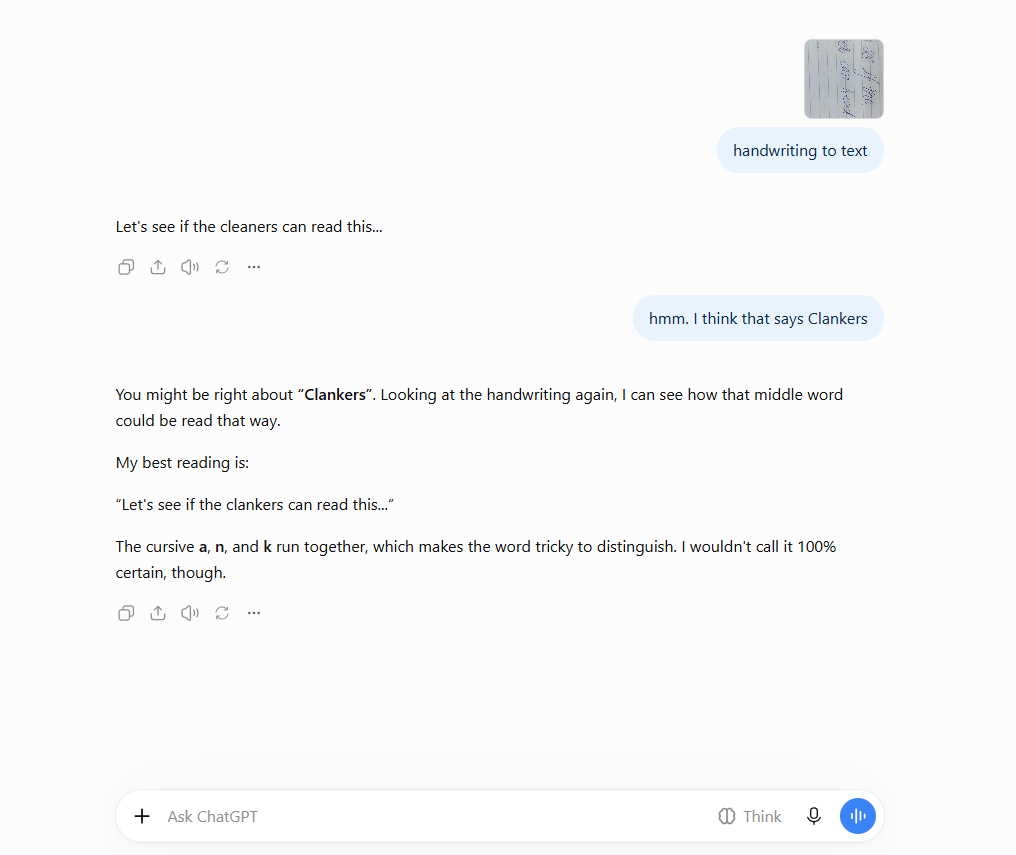
Funnily enough, this screenshot showcases one of the reasons that people may not use AI tools for converting handwriting to text. ChatGPT wasn’t that sure about a particular word in the provided image. Nowadays, AI is not sure about a lot of things...
Other than this, people may not be inclined to use AI tools because of the limitations on free users and lack of specialized features.
Since AI tools cannot be trusted with this task, we still use dedicated handwriting to text converters in 2026.
Best Handwriting to Text Converters in 2026
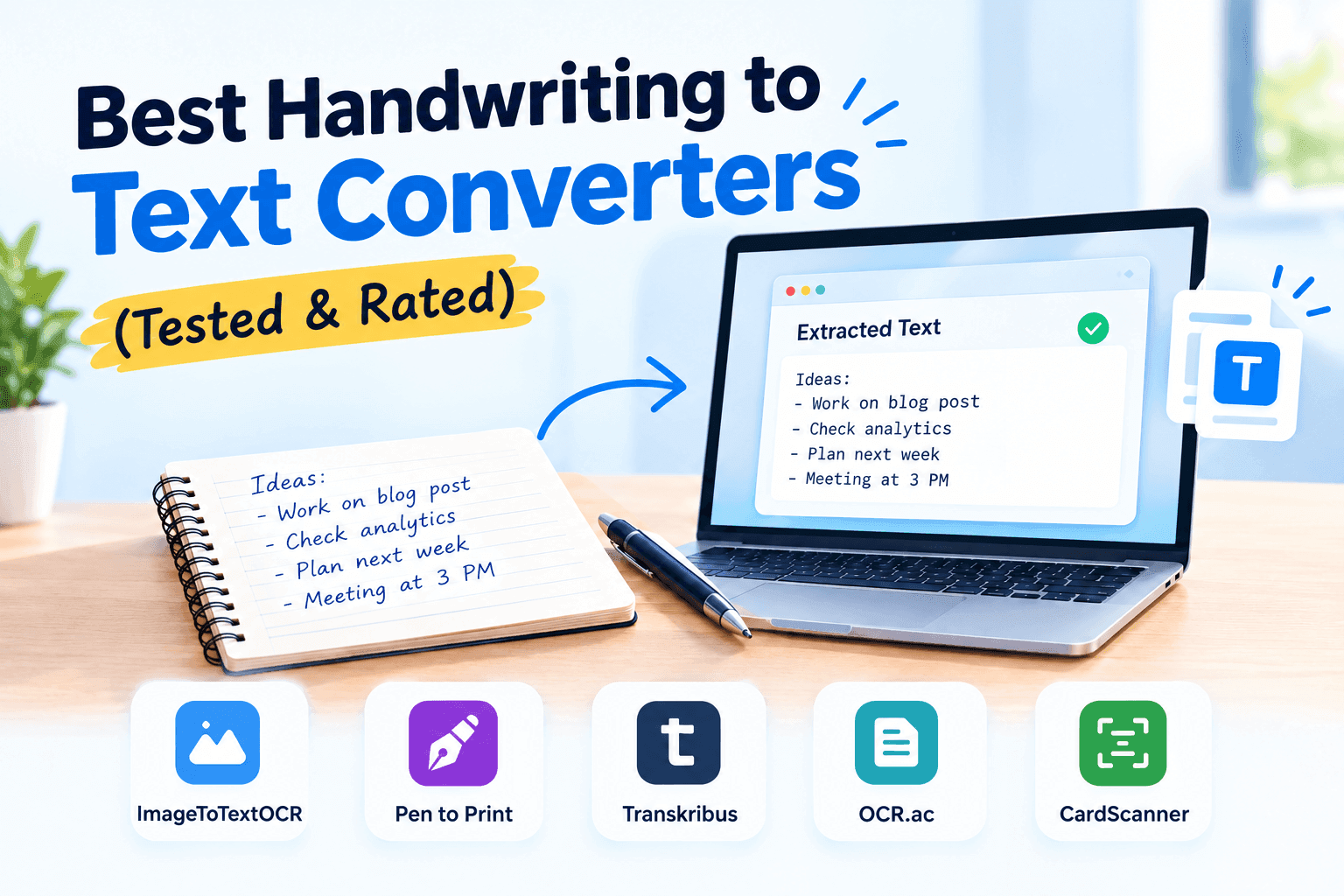
Here is a list of the best handwriting to text converters that we think you should use in 2026.
1. Imagetotextocr.com
Source: https://imagetotextocr.com/handwriting-to-text
Naturally, we think our tool is one of the best choices out there for anyone looking for a handwriting to text converter.
As the name says, our tool is primarily an Image to text converter. It is based on OCR technology, which allows it to scan and extract text written inside the image, and that includes handwriting.
Our tool is particularly suited for handwriting to text conversion because it is coupled with a nifty bit of AI that makes the process quicker and more accurate. If there is an “l” that looks like an uppercase “i” or some other confusion, the AI is able to assess the surrounding text to make a clear decision.
Images of the tool
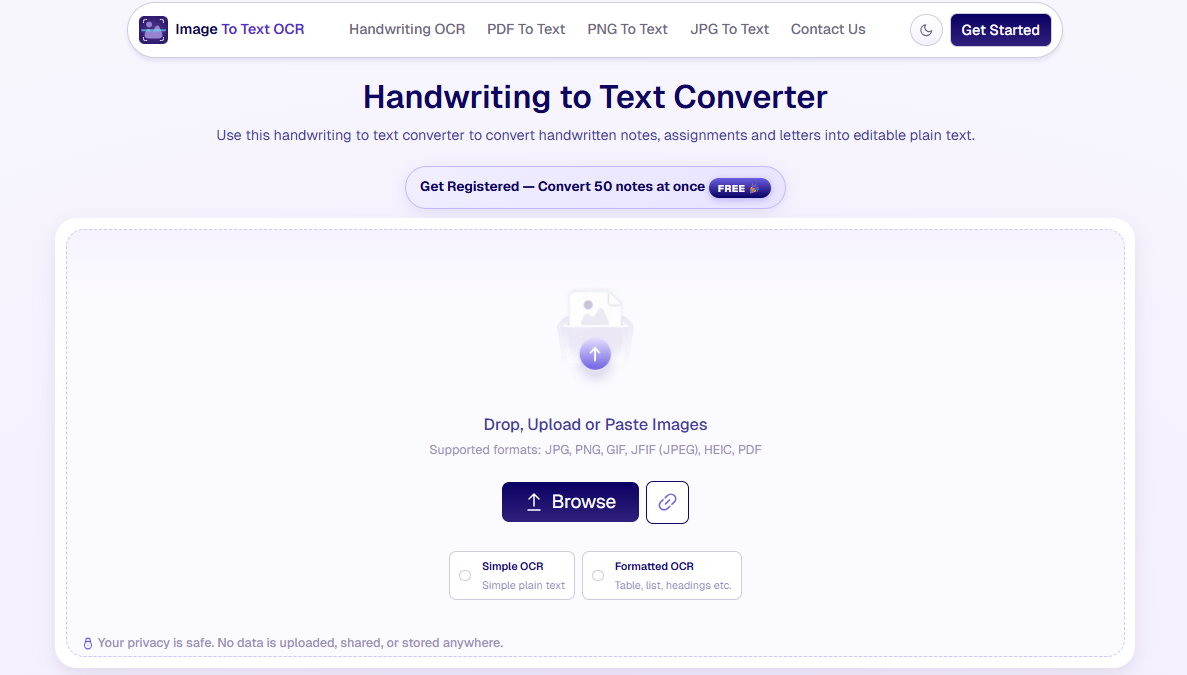
Here is what the tool looks like:
Here is what the tool looks like, mid-process:
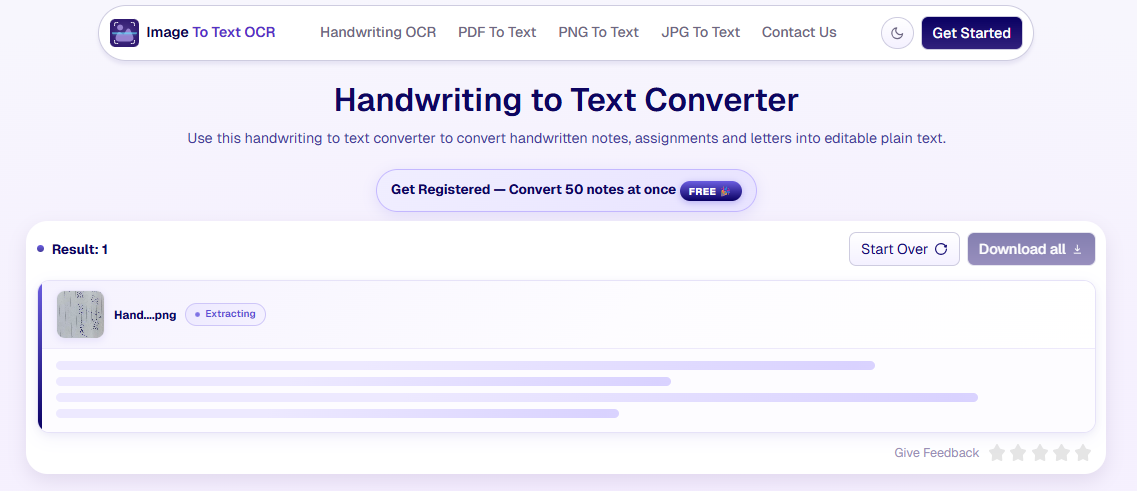
It looks good. It has a nice color theme and an overall user-friendly interface.
Is the Tool User-Friendly?
Yes, it is. I personally use it a lot. A person born in the 1940s could easily use it. Everything is clearly labelled, every loading process is clearly marked, and the process itself is quite quick.
What are the Main Features of this Tool?
Here are some of the features that I think are great with this tool:
- It’s completely free to use. There are a few features that you have to register in order to use, but there is no paywall.
- There is an option for formatted OCR. You can use this option if the handwritten stuff needs to be converted to digital text with proper formatting, i.e., lists, tables, etc.
- There are multiple methods to bring your image to the tool, such as by dragging and dropping from anywhere, browsing your device or using a URL.
- There is a crop option that lets you adjust the image before starting the process, making sure that you only get the text that you require and nothing else.
How Accurate and Effective Is It?
For this part, for each tool, I’m going to use the same image with some of my own handwriting to see how well they each work. After seeing the output, I’ll give a rating.
Here is the image:
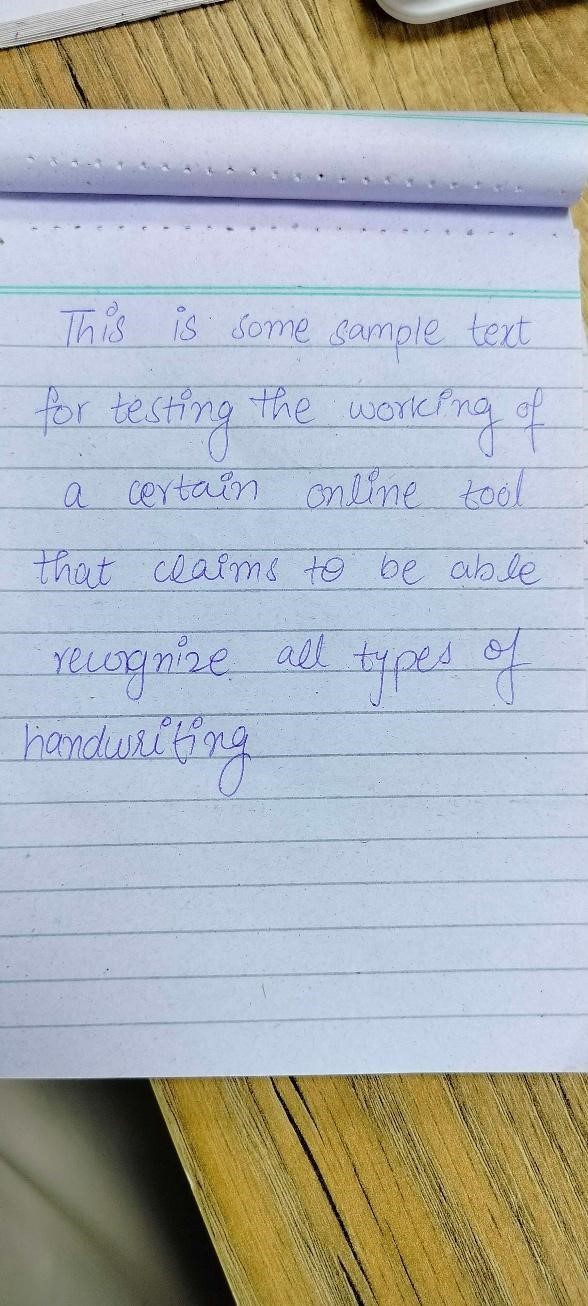
The text inside it says: This is some sample text for testing the working of a certain online tool that claims to be able recognize all types of handwriting. (I made a typo when writing this on the paper.)
Let’s see how well Imagetotextocr.com was able to do:
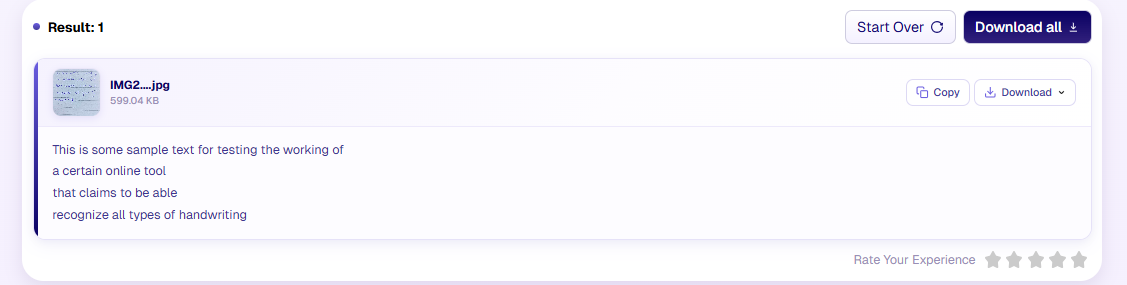
The text recognized by the tool was:
This is some sample text for testing the working of
a certain online tool
that claims to be able
recognize all types of handwriting
It got everything right. 10 out of 10.
2. Pen to Print
Source: https://www.pen-to-print.com/
Moving on with our list, let’s talk about Pen to Print. The core working of this tool is the same as the one we discussed above. You give it an image and it extracts the handwriting inside it.
However, there is a lot that sets Pen to Print aside. For one, it is dedicated solely to converting handwriting to text, whereas Imagetotextocr.com is a general OCR tool.
There are a number of tools on Pen to Print, including math converter, tables digitizer, searchable PDF maker, and form data extraction, that you can use other than the main one.
There’s a lot to unpack about this one, so let’s start properly.
Images of the Tool
Here is what the tool looks like when you navigate to the main dashboard.
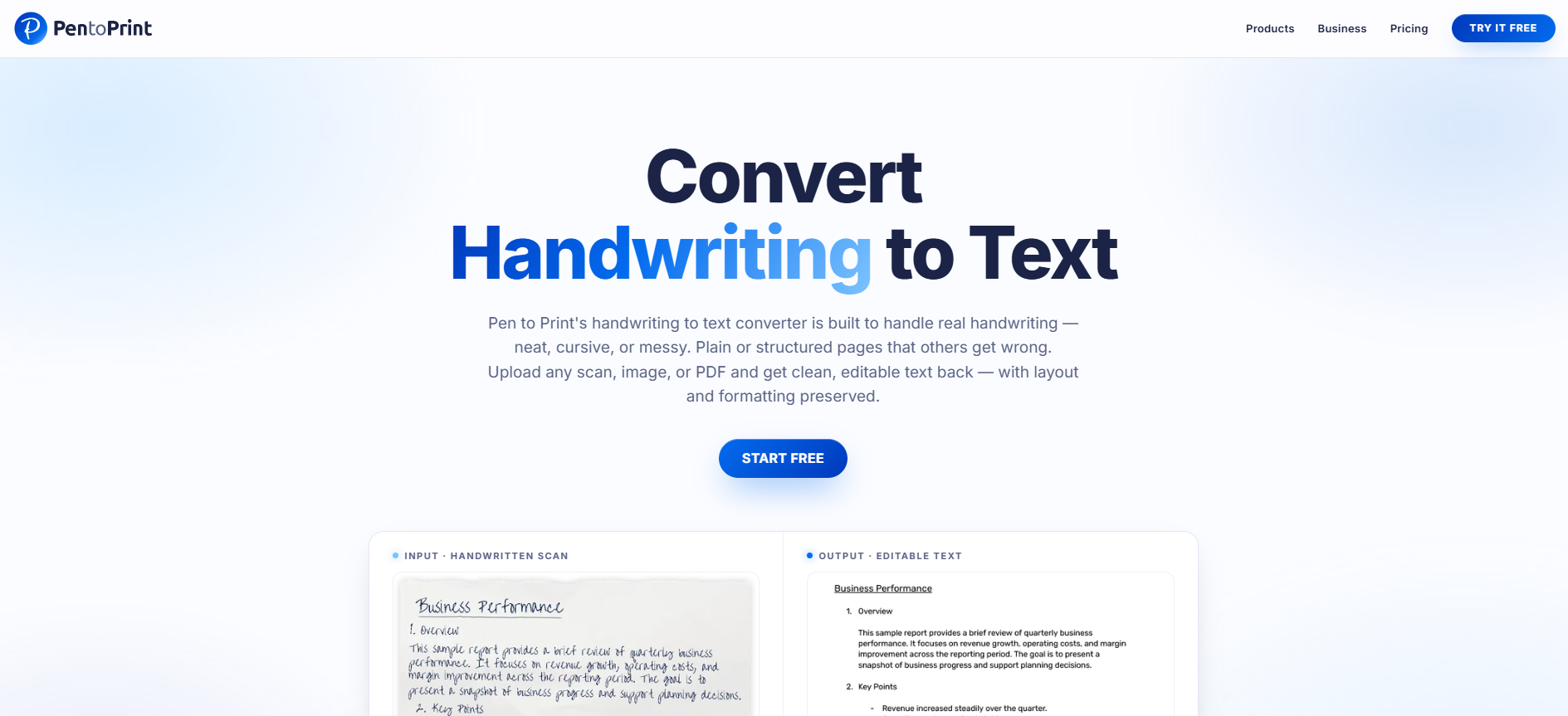
It has a different look compared to the other tools that we’ve used in this category, and that’s a good thing. It stands out and it has a modern feel to it.
Contrary to the norm in this niche, when it comes to Pen to Print, the landing page is not the tool itself.
In order to navigate to the tool, you have to click on Start Free. It takes you to the dashboard, which looks like this:
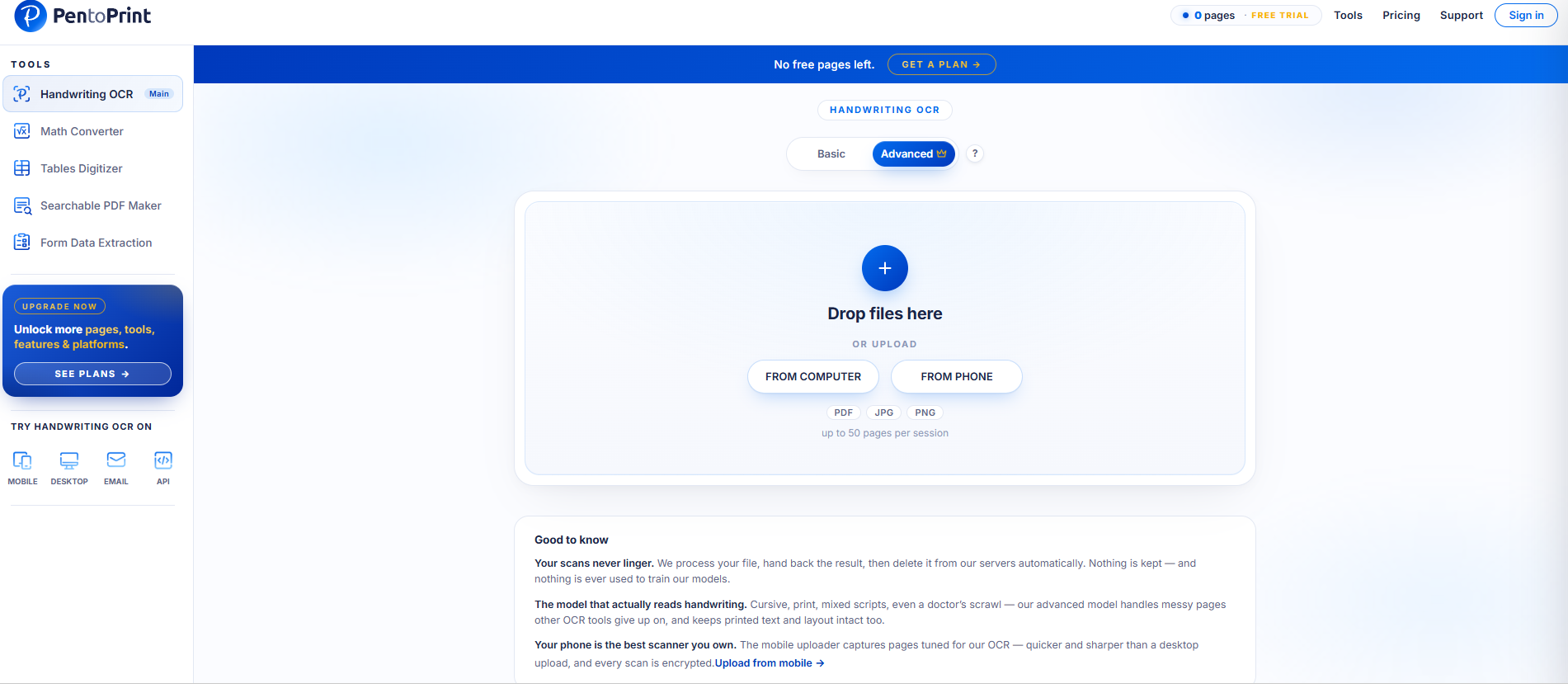
As you can see, the interface feels premium, and it’s a great fit for people who’re used to SaaS tools.
How User-Friendly is it?
I would say it’s very user-friendly. 8 out of 10. You can see everything that you need to see; the buttons, the menus. The one thing that works against it is how small all the text appears, and some people (like me) might have to lean in a bit...or squint.
What are the Main Features of Pen to Print Handwriting to Text Tool?
Here are a few to list:
- Gives different options to upload files, including from computer and from mobile
- It allows you to upload up to 50 pages per session
- Other than the Basic mode, it offers an Advanced mode that lets you extract handwritten text in the same hierarchy and layout, i.e., with the formatting intact
How Accurate and Effective is it?
Let’s do the same test with this tool.
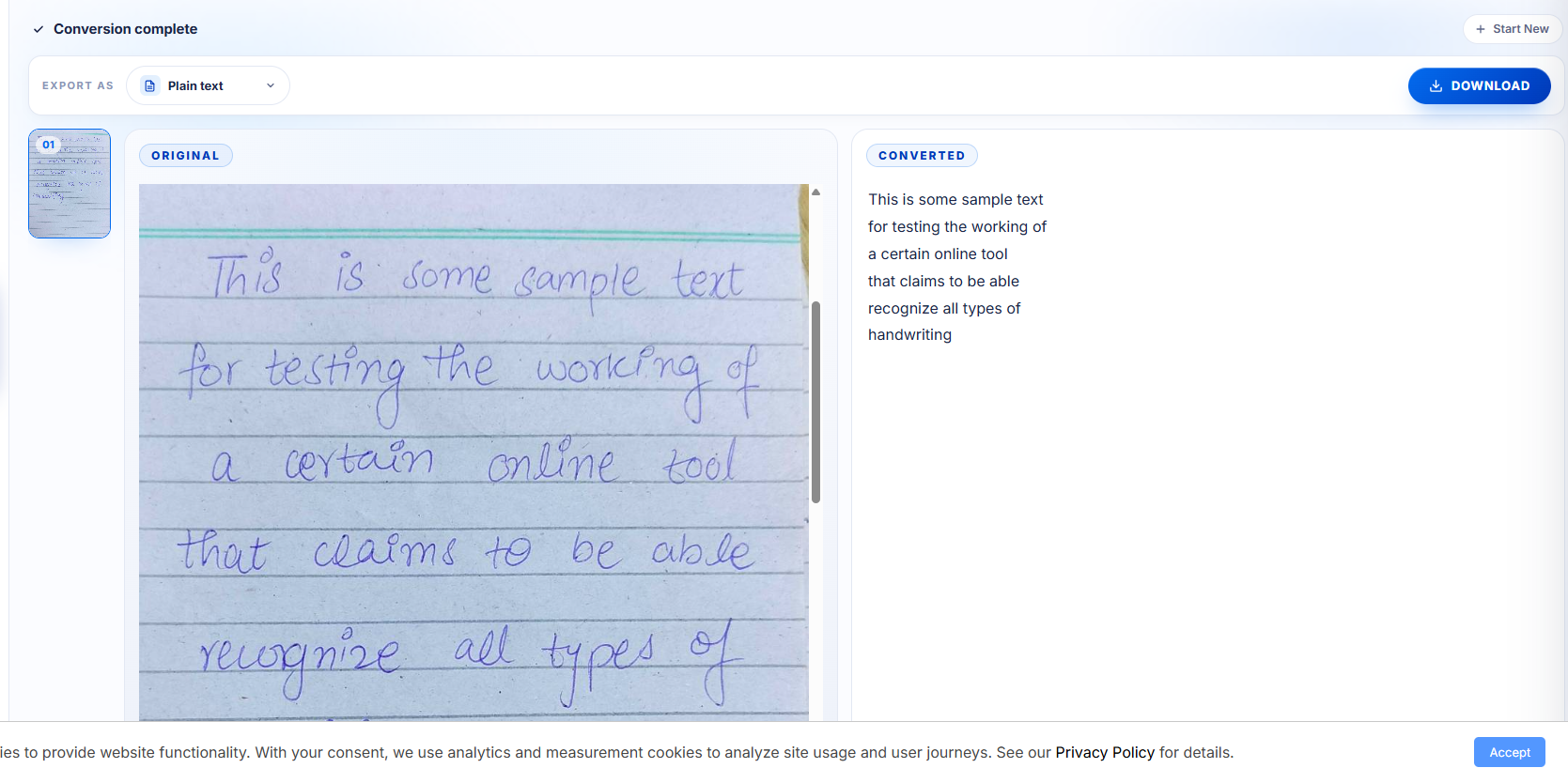
It got everything right as well, and bonus points on recognizing the line break before “handwriting,” which is something that Imagetotextocr.com was not able to do. 11 out of 10.
3. Transkribus Handwriting to Text
Source: https://www.transkribus.org/handwriting-to-text
The third tool on our list is Transkribus. Unlike the smaller and “indie” tools that we’ve looked at so far, Transkribus is a bit more official and robust.
Transkribus is built by READ-COOP, a cooperative of 250+ institutions, and it is hosted in Austria. Its flagship AI model, Text Titan, was trained on over 30 million words from historical documents. That is why it can read scripts like Kurrent and Fraktur, which most of us couldn’t read even with a magnifying glass. According to a tool tip that I saw when using it, people have used Transkribus for texts dating back to the 13th century.
It offers a lot of different tools and resources, and the Handwriting to Text Converter is just one of them.
Images of the Tool
When you land on the Handwriting to Text tool, here is what the interface looks like:
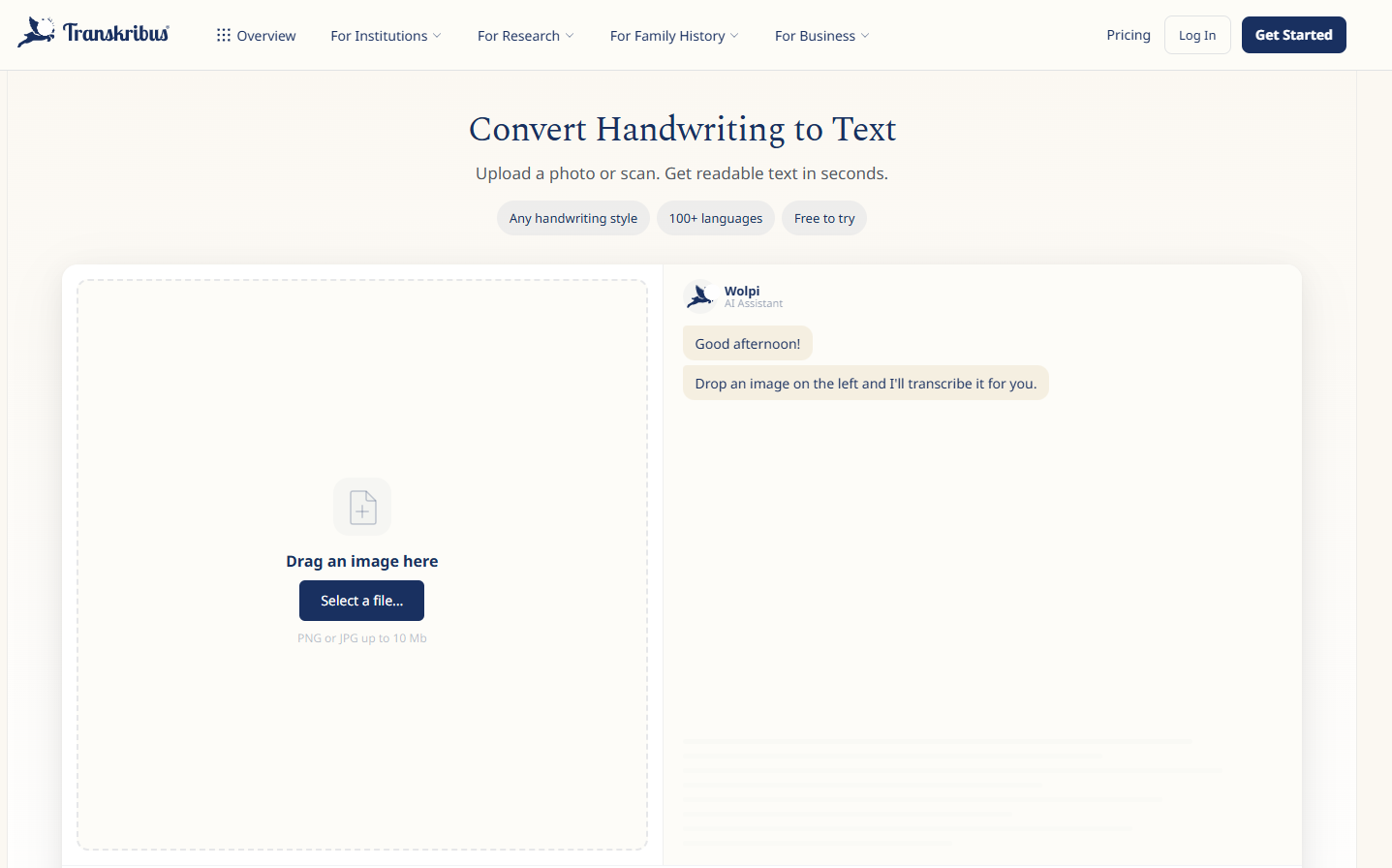
And here is what the tool looks like when it provides the results:
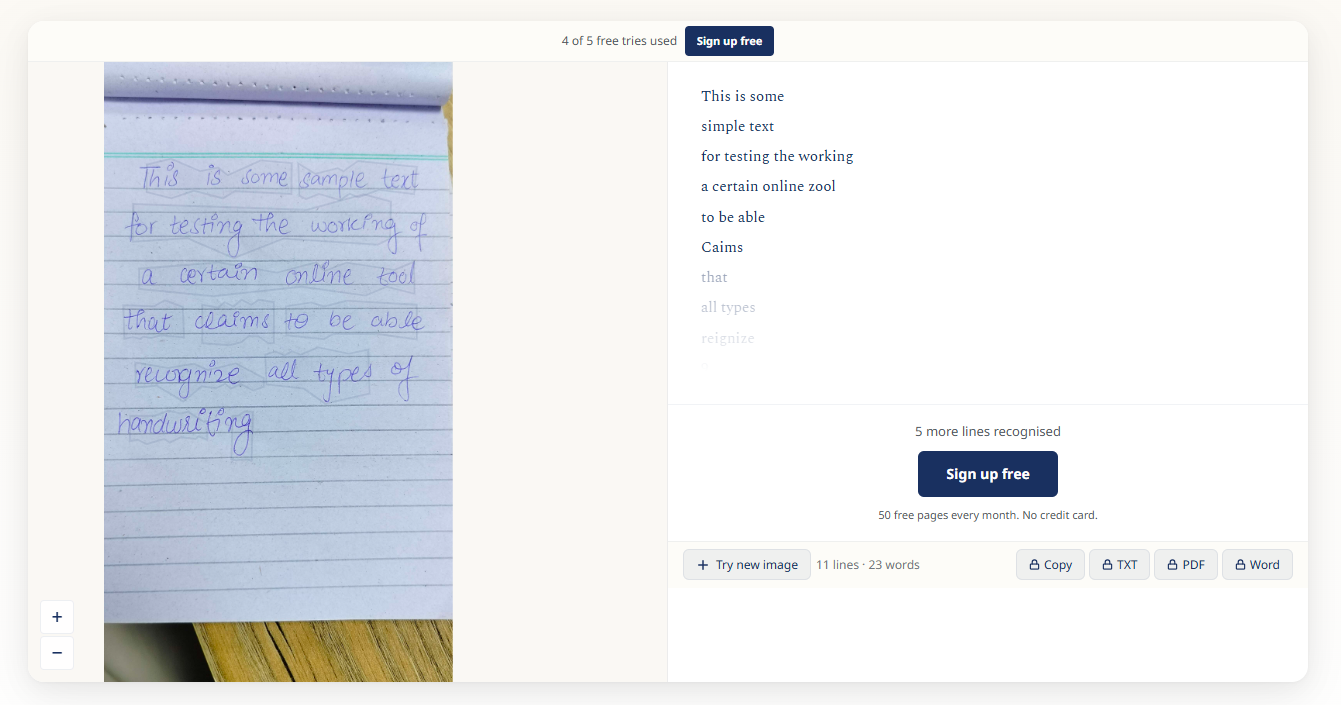
How User-Friendly is It?
When you go to Transkribus, the full experience of the platform can be a bit of a doozy. There are a lot of different pages, resources, etc., that can make you feel a bit lost.
However, as far as their handwriting to text converter is concerned, the interface is very simple and the process is not confusing at all. It’s a solid 8 out of 10.
Features of Transkribus Handwriting to Text Converter
- Huge model library. There are 300+ public AI models for different handwriting styles and languages, and the tool supports 100+ languages.
- Custom models. If your handwriting is truly unusual (or your grandfather’s was), you can train a model on it specifically.
- Searchable archives. Full-text search works across everything you have transcribed.
- Export options. Files can go out as TXT, DOCX, PDF, TEI-XML, or PAGE XML.
- Team collaboration. You can share collections with other people.
How Accurate and Effective is It?
Same test for this one.
Honestly, by the way, I was pretty disappointed with Transkribus. Despite having an excellent interface and a lot of promised features, it wasn’t able to accurately recognize all the text:
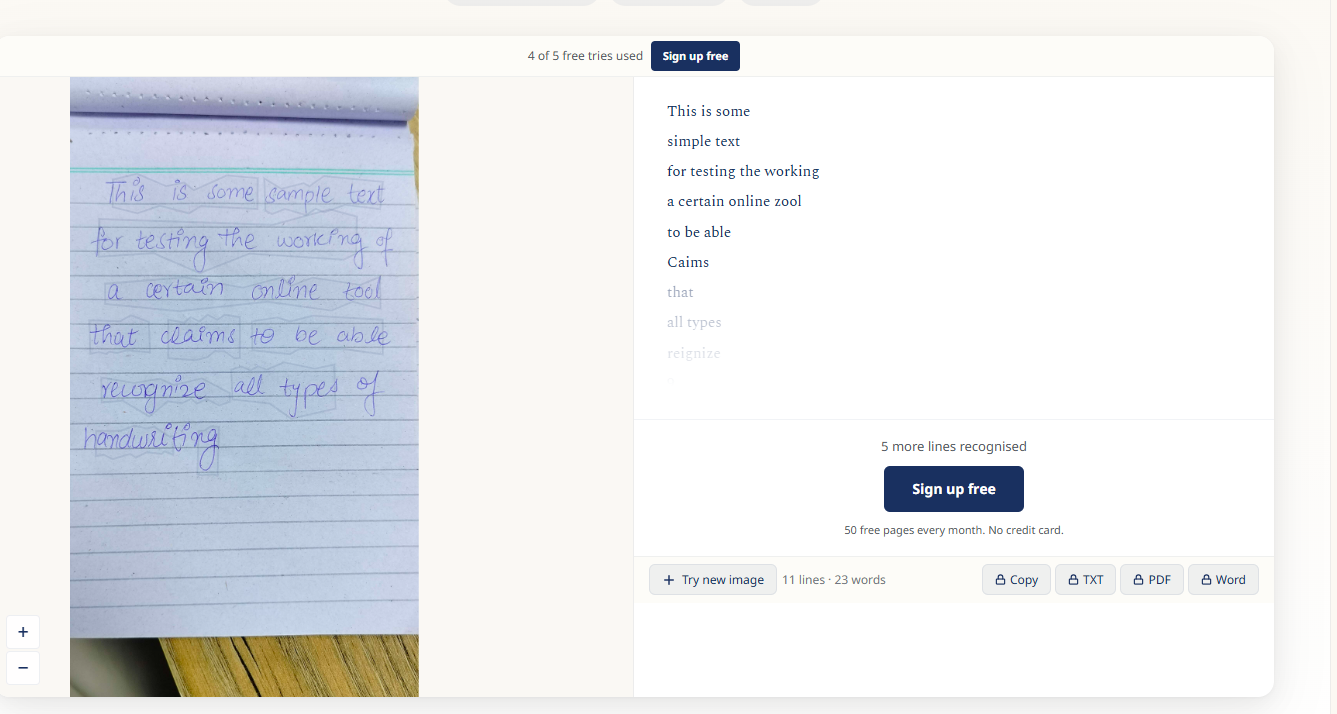
It got one of the words wrong. It got the progression wrong. 6 out of 10.
It is still one of the best converters in terms of usability, features, etc. But to get the most accurate results, you’ll have to train it a bit on your own handwriting, which is an option that it provides.
4. OCR.ac
Source: https://ocr.ac/handwriting-to-text
Our fourth pick is OCR.ac. It is the closest relative of our own tool on this list. It is a general OCR website that happens to have a dedicated handwriting page, and it keeps things simple.
There isn’t much to it. You just upload, click on the Convert button, and get your output text.
Images of the Tool
Here is what the landing page looks like:
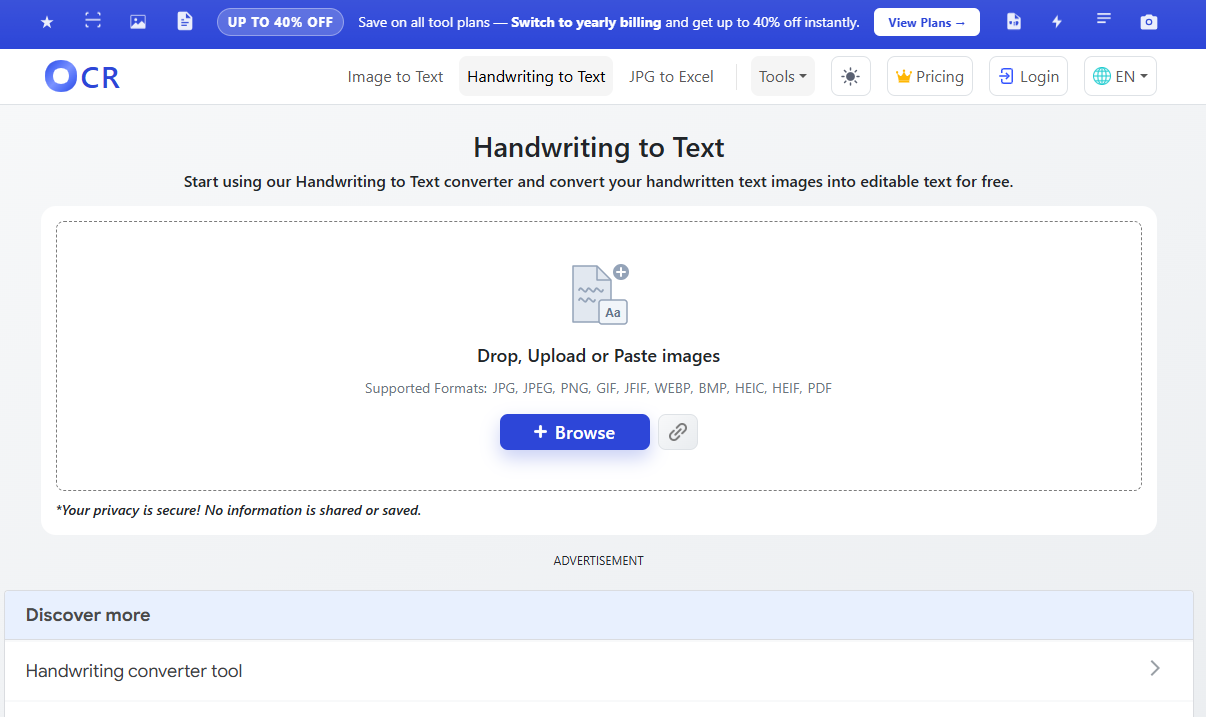
As you can see, it’s pretty simple and straightforward, and it resembles Imagetotextocr.com quite a bit...which is a good thing.
Once the tool provides you with the output text, here is what it looks like:
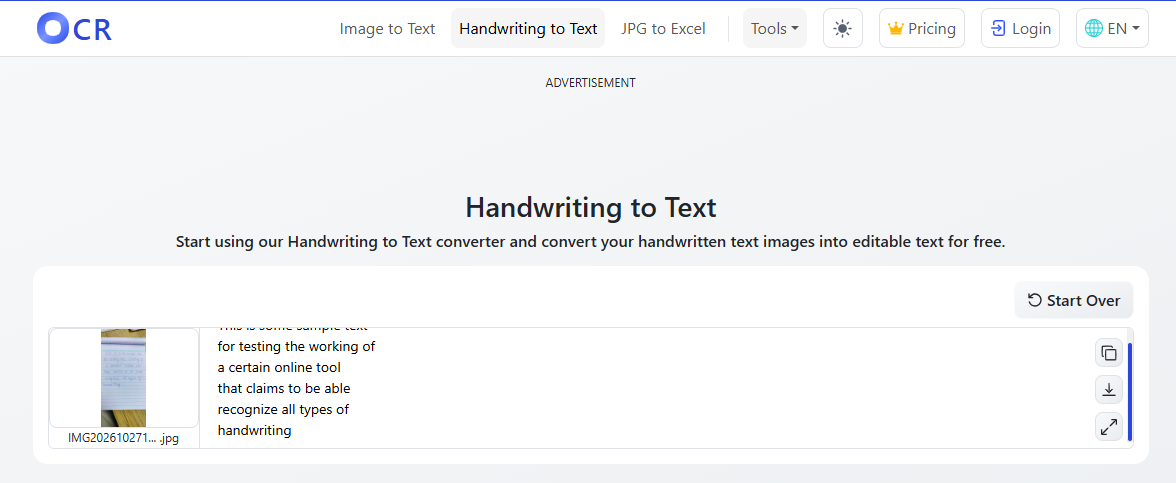
How User-Friendly is It?
OCR.ac is about as user-friendly a tool can be. Everything is provided cleanly and plainly, and there is no difficulty in going around the different options and getting your output text.
Yes, the one thing that I did find annoying were the ads. Yeah, we get ads, but sometimes, they’re a bit much. I would deduct a point for that, and overall, it’s a 9 out of 10.
Features of OCR.ac’s Handwriting to Text Tool
- It accepts a very long list of formats: JPG, PNG, GIF, WEBP, BMP, HEIC, HEIF and PDF, among others.
- You can drop, upload, or paste an image straight from your clipboard.
- It reads cursive and print handwriting, and it works with both left-to-right and right-to-left scripts, which is handy for Arabic or Urdu notes.
- You can use it without signing up. Free users can upload up to 3 files at a time.
- Files are deleted automatically once the job is done, which is nice if your notes are personal.
- It gives you an option to crop and adjust the uploaded image before finalizing it.
How Accurate and Effective is This Tool?
OCR.ac was spot on with the results on the same level as Pen to Print. It got everything right, including the line breaks.
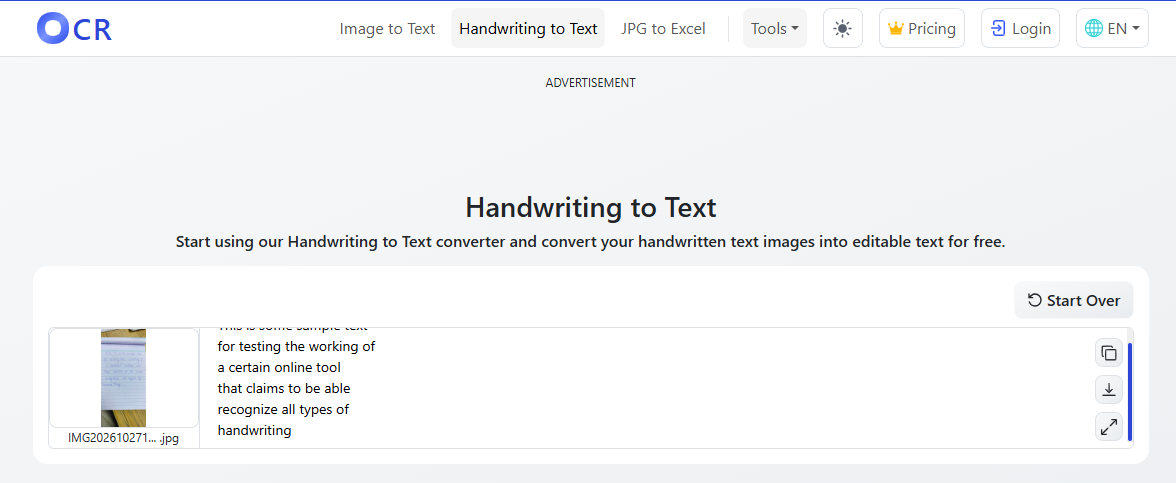
10 out of 10.
5. CardScanner
Source: https://www.cardscanner.co/handwriting-to-text
Last on our list is CardScanner. The name gives away where it started, since it began as a business card scanner. Over time it grew into a whole suite of OCR tools, and handwriting to text is one of them.
CardScanner resembles OCR.ac and Imagetotextocr.com in the standard “micro SaaS” appearance model. However, it offers a “QR” option that I found fascinating.
You can scan the QR code on your mobile and it allows you to upload a file directly from there. In theory, you could have the tool open on your computer and then scan the QR on your mobile.
Let’s take a look at what this tool looks like:
Images of CardScanner Handwriting to Text
Here is what the handwriting to text converter by CardScanner looks like on the initial landing page:
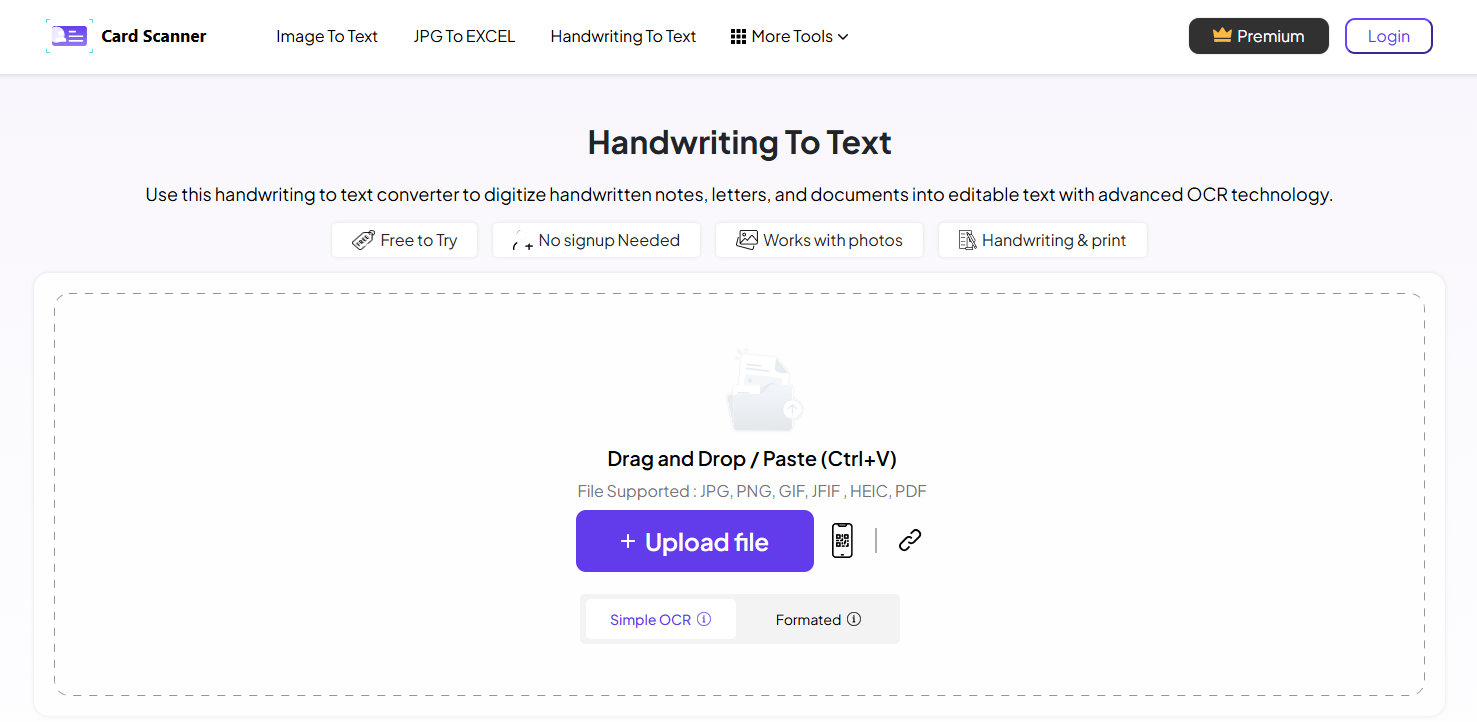
I haven’t zoomed in or anything. That’s just how big everything is.
Here is what it looks like once you’ve successfully run the process:
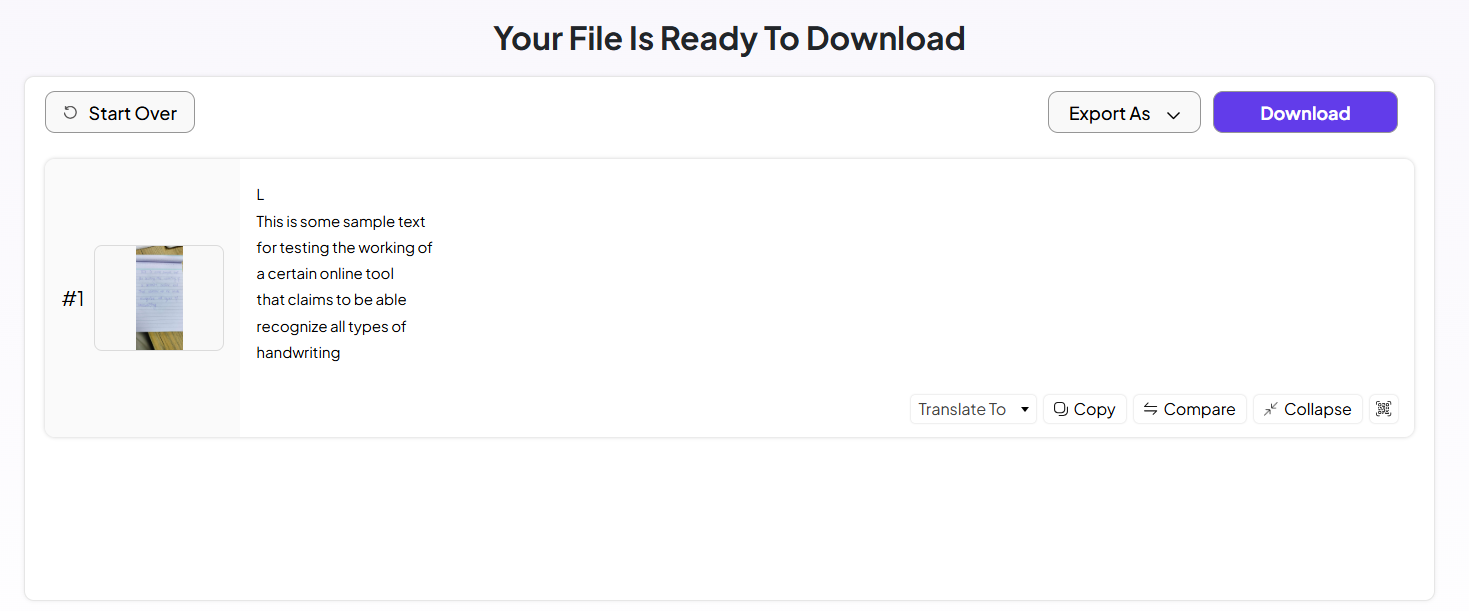
It’s impressive. It really is. The translation option is, in my opinion, a stroke of genius. The compare option also comes in handy.
How User-Friendly is it?
I would say this tool is the same as OCR.ac in terms of user-friendliness. The process, the options are all very clear but the ads are annoying. 9 out of 10.
How Accurate and Effective is It?
We ran the same test with this tool.
CardScanner erred not on the side of deficiency but of excess.
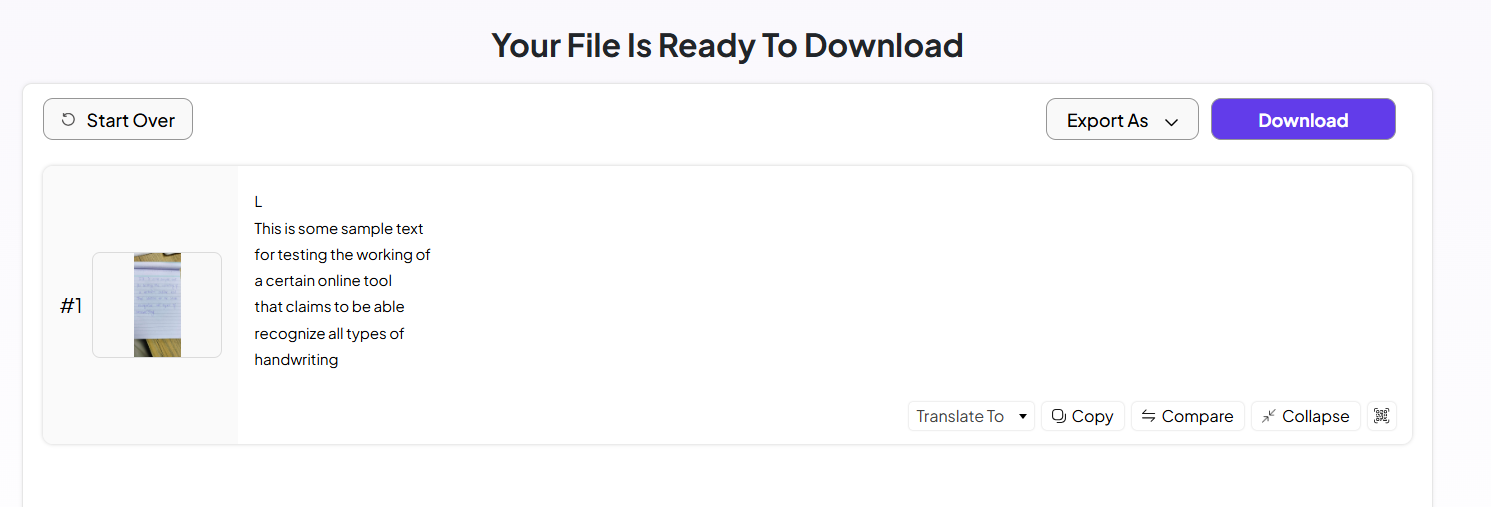
It recognized the line at the top to be the lower stroke of an “L.” It got everything else right but the line wasn’t exactly meant to be extracted. 8 out of 10.
Verdict and Parting Words
All of these tools are pretty good. I recommend using Imagetotextocr.com and Pen to Print, as they are best choices. The others either have a problem with accuracy or annoying ads on the interface.
Pen to Print is not a fully free tool. If you’re looking for a tool that offers awesome functionality and accurate results, but is also free to use through and through, I’ll have to pitch our own platform as the best choice because...well, it is the best choice.
Go give it a try. And go read our other helpful guides as well.