Key Takeaways:
- OCR converts printed, handwritten, or scanned text in images and documents into machine-readable, editable text through a seven-step process: scanning, preprocessing, segmentation, feature extraction, recognition, post-processing, and output.
- There are five types of OCR: Simple OCR for clean printed text, OMR for detecting marks and bubbles, OWR for word-level recognition, ICR for AI-driven character recognition including handwriting, and IWR for AI-driven word recognition of cursive and freeform text.
- AI improves OCR through context awareness, noise handling, and self-improvement over time. It powers both the recognition step and post-processing cleanup, and is what separates modern ICR and IWR from traditional pattern-matching OCR.
- OCR's primary limitations are poor performance on messy handwriting, complex layouts, special characters, and less common languages. Output always requires proofreading, and uploading sensitive documents to external OCR servers carries security risk.
Introduction
Every day, millions of people convert receipts, notes, invoices, screenshots, and scanned PDFs into editable text using OCR. From Google Lens to banking apps, OCR quietly powers many of the tools we rely on. But what exactly is OCR, and how does it transform an image into editable text?
In this post, we’re going to take a deep dive into what this technology really is and how it works “behind the screens.” We’ll also talk about the benefits of using OCR as well as the drawbacks.
Once you are done with this guide, you’ll know all the important stuff about this technology and how to properly utilize it for your own needs.
Let’s get started.
What is OCR?
Here is a definition of OCR:
OCR stands for Optical Character Recognition. OCR is a technology that converts printed, handwritten, or scanned text in images and documents into machine-readable text.
OCR essentially bridges the gap between non-editable text and editable text. It allows you to take text that is written or printed in an “untouchable” format, such as in a PDF file or an image, or on a physical surface and make it digital. Once it is digital, you can copy paste it anywhere you want, edit it however you want, and save it however you want.
How Does OCR Work?
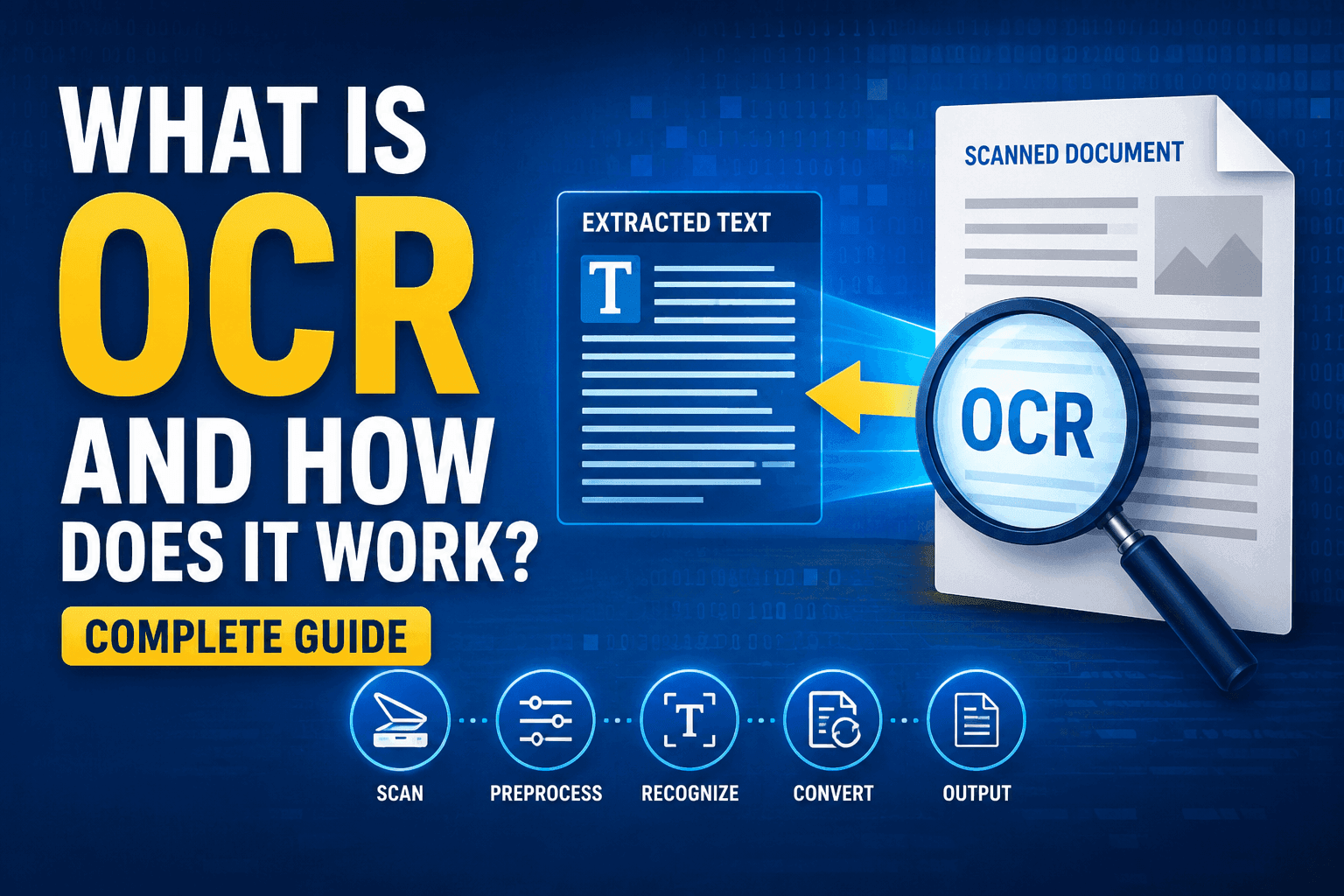
OCR works through a series of steps, involving initially scanning the text, refining it, and then extracting the characters, before presenting it to the user.
Here is the exact breakdown of an OCR engine’s functionality.
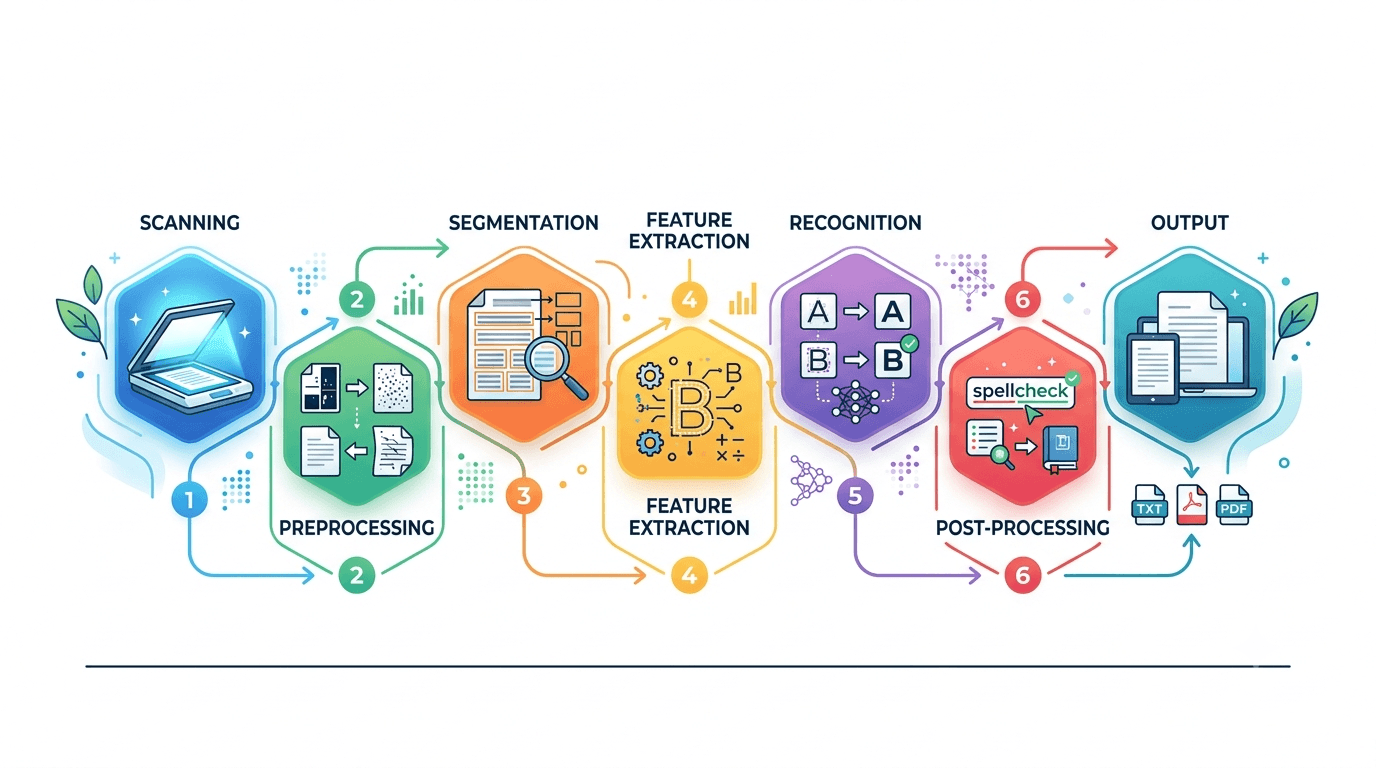
Scanning: This is the first part of the process. The OCR engine takes in your source, whether that's a scanned page, a photo from your phone, or a PDF, and converts it into a digital image it can actually work with. Nothing gets read yet. The OCR is just grabbing the raw picture.
Preprocessing: This is the part where the image is cleaned before getting processed. The engine straightens crooked scans, strips out background noise, sharpens edges, and often flips everything to plain black and white so the text stands out. Skip the quality of your input here and the whole process suffers. A blurry photo gives blurry results.
Segmentation: The cleaned image and preprocessed image is then divided into smaller parts. The engine isolates blocks of text, then lines, then words, then individual characters. Essentially, the engine draws “outlines” around individual characters so that they can individually checked.
Feature Extraction: The OCR engine then looks for specific markings for each character, i.e., things like loops, curves, lines, and intersections. A lowercase "e" has a closed loop and a horizontal bar. The engine notes those distinctive markers instead of trying to memorize the whole shape.
Recognition: Here's the part everyone thinks OCR actually is. The engine matches those extracted features against its trained models and decides which character it's looking at. Modern engines lean on machine learning for this, which is why they handle messy handwriting far better than the older pattern-matching tools did.
Post-Processing: Once the recognition part is done, the engine checks the text and looks for grammar and spelling errors. If the engine reads "clear" it'll likely correct it to "clear" because the first version isn't a real word. This step quietly saves OCR from looking foolish more often than you'd expect. Note that this step isn’t an automatic “grammar checker” function built into an OCR engine. Rather, it is for the guidance of the engine itself.
Output: Finally, you get your text in a usable format, ready to copy, edit, search, or save wherever you need it. The "untouchable" text is now fully yours.
Now that you understand how OCR works behind the scenes, you can test the entire process yourself using our free Image to Text OCR tool.
Types of OCR
There are 5 different types of OCR. Each of the types approaches the recognition/extraction process in a different way.
The types include:
- Simple OCR
- Optical Mark Recognition (OMR)
- Optical Word Recognition (OWR)
- Intelligent Character Recognition (ICR)
- Intelligent Word Recognition (IWR)
Simple OCR is the basic type of OCR that we all know, love, and adore. It is the technology that extracts characters from an image and gives us the text without tinkering with it.
Optical Mark Recognition (OMR) is a type of OCR that deals specifically with recognizing markings in a picture or a paper, etc. This type of OCR is used particularly for tasks such as scanning answer sheets.
Optical word recognition (OWR) is a type of OCR that deals with scanning and recognizing individual words rather than letters.
Intelligent Character Recognition (ICR) is a type of OCR that deals with smarter, AI-driven character recognition rather than plain template matching. It reads tricky input that trips up simple OCR, like varied fonts, distorted text, and handwriting, and it improves the more it processes.
Intelligent Word Recognition (IWR) is a type of OCR that deals with recognizing words as whole units using the same AI smarts, instead of picking them apart letter by letter. It's built for the messy, unpredictable cases, freeform handwriting and blurred cursive included, where reading word-by-word beats character-by-character.
Here is a table that describes the differences between the various types of OCR.
Type | What It Recognizes | Recognition Style | Tech Approach | Common Use |
Simple OCR | Printed characters | Basic, clean input only | Pattern matching | Books, PDFs, typed documents |
OMR | Marks and bubbles | Detects marks, not text | Mark detection | Answer sheets, surveys, ballots |
OWR | Printed words (whole) | Word-level, clean input | Word-level pattern matching | Word-by-word text extraction |
ICR | Characters (incl. tricky ones) | Smart, AI-driven | AI and machine learning | Handwriting, varied fonts, forms |
IWR | Words (incl. tricky ones) | Smart, AI-driven | AI and machine learning | Cursive, freeform, distorted text |
What Role Does AI Play in OCR?
As mentioned above, there are two types of OCR that utilize AI in their working: ICR and IWR.
What exactly does AI do in those types? Essentially, AI improves the process by making it more accurate. Tricky words, such as ones that combine “L” and “I” can cause confusion for basic OCR models. With AI, the engine can understand the context and accurately identify what the word/sentence is supposed to be.
Here's where AI earns its keep:
- Context awareness: It reads the words around a character to make smarter calls. That's how it knows "l3tter" should probably be "letter."
- Noise handling: Faded ink, shadows, low resolution, and bad angles don't break it the way they broke older tools.
- Self-improvement: The more data these models process, the sharper they get, with no one rewriting code by hand.
- Language and layout flexibility: AI handles multiple languages, mixed fonts, and unusual layouts without needing a separate rulebook for each.
And it doesn't stop at recognition. AI also powers the post-processing cleanup, error correction, and even downstream tasks like translation and document automation. So when people say "OCR is smart now," what they really mean is the AI layer baked into it.
OCR vs ICR
Quick clarification before the comparison, because this trips people up: ICR is technically a type of OCR, not a rival to it. When people say "OCR vs ICR," what they're really comparing is traditional OCR (the simple, printed-text kind) against ICR (the AI-driven, handwriting-capable kind). So that's the framing we'll use here.
The core difference comes down to what each one was built to read. Traditional OCR wants clean, printed, predictable text and handles it fast and cheaply. ICR was built for the messy reality of human handwriting, using AI to interpret input that would leave plain OCR guessing. One trades flexibility for speed; the other trades a bit of speed for serious smarts.
Here's the head-to-head:
Factor | Traditional OCR | ICR |
Best input | Printed and typed text | Handwritten and irregular text |
Underlying tech | Pattern and template matching | AI and machine learning |
Learns over time? | No | Yes |
Speed | Fast | Slightly slower (more processing) |
Cost | Lower | Higher |
Accuracy on print | Excellent | Strong |
Accuracy on handwriting | Poor | Strong |
Rule of thumb: if your documents are typed, traditional OCR is all you need. The second handwriting shows up, ICR steps in.
Here’s the thing to remember about OCR and ICR. You don't usually choose one over the other. A good online OCR tool runs both, applying traditional OCR to the printed sections and ICR to the handwritten ones in the very same file. The "vs" is more about understanding the difference than picking a side.
History and Evolution of OCR
OCR has been in development for close to a century. Here is how the technology progressed over time.
1914 to 1950s: Early machines
Emanuel Goldberg built a machine in 1914 that could read characters and convert them into telegraph code. In 1951, David Shepard developed a device called Gismo capable of recognizing printed characters. Neither was a commercial product. They established that machine-based character recognition was technically feasible.
1960s to 1970s: First commercial applications
OCR started being used industrially. The US Postal Service adopted it to sort mail by reading zip codes. Banks used it to process cheques. IBM and other companies produced OCR hardware for commercial sale.
The technology was expensive, the supported fonts were limited, and error rates were high by current standards, but the efficiency gains were enough to drive adoption.
1980s to 1990s: Software and personal computers
OCR transitioned from dedicated hardware to software running on personal computers. Ray Kurzweil's earlier work on flatbed scanner OCR laid the technical groundwork that fed into this period.
By the 1980s, products like OmniPage were making OCR available on standard desktops. Access to the technology broadened significantly.
2000s: Scale and digitization
As organizations accumulated large volumes of scanned documents, demand for OCR grew. Google used it as part of the Google Books project to digitize millions of physical books. OCR became a standard feature in document management software rather than a specialized add-on.
2010s to present: Machine learning
Neural networks replaced pattern matching as the underlying recognition method. This improved accuracy across a wider range of inputs, including handwriting, distorted text, and low-quality scans, and it is what gave rise to ICR and IWR as distinct approaches.
Current OCR tools also integrate with broader document processing workflows rather than operating as standalone conversion steps.
How is OCR Used?
There are different ways in which OCR is used. The technology is integrated into software and devices in a number of ways. Here is a breakdown of some of the main ones:
1. Mobile applications
One of the most common and practical ways to use OCR nowadays is via mobile apps. The technology can be integrated into mobile applications, allowing users to utilize the device’s camera to directly take images of the text they want to extract. Common examples of OCR apps include Google Lens and Adobe Scan.
2. Web-based tools
Another popular way to utilize OCR is through web-based tools. Web-based tools are available on the internet and can be accessed by anyone who has a browser and an internet connection.
These tools don’t have to be downloaded, which makes them very convenient. They utilize OCR technology in the same way as apps and other software. Imagetotextocr.com is a good example of a web-based OCR tool.
3. Desktop software
OCR can also be used in the form of downloadable desktop software. These programs are installed directly on a computer and run locally, without requiring an internet connection. Adobe Acrobat and ABBYY FineReader are well-established examples.
Desktop software tends to offer more processing control and is often preferred in professional environments where documents contain sensitive information that should not be uploaded to external servers.
4. APIs
OCR functionality is also available through APIs, which allow developers to integrate text recognition directly into their own applications and workflows.
Rather than building recognition capability from scratch, developers send documents or images to the API and receive extracted text in return.
Google Cloud Vision and Amazon Textract are widely used examples. This approach is common in enterprise software, automated data pipelines, and any situation where OCR needs to run at scale without manual intervention.
5. Dedicated hardware
Some OCR use cases call for purpose-built physical devices rather than software. Dedicated hardware includes document scanners with onboard OCR processing, handheld text readers, and industrial scanning systems used in settings like warehouses or mail sorting facilities.
These devices are optimized for speed and reliability in high-volume environments where running software on a general-purpose computer would be impractical. Accessibility devices that read printed text aloud for visually impaired users also fall into this category.
What Are the Benefits of Using OCR?
There are many benefits of using OCR. It can significantly improve productivity. One of the things about OCR is that you can truly realize its benefits once it has become part of your workflow.
Here are some of the main ones that you should know about.
- It saves you from manual retyping. Since OCR lets you scan and digitize text in an instant, you don’t have to manually retype anything. For instance, where someone would have to retype a whole contract by hand spending hours, OCR can do the same job in minutes.
- Your text becomes searchable. When OCR scans a picture or a PDF document, all the text it extracts becomes searchable. This is a useful thing, especially in PDFs that have non-digital text in them.
- The text becomes editable. Along with becoming searchable, the text also becomes editable. You can make changes to the text, such as making additions or removing content that you don’t find fitting.
- It saves real money. Cutting manual data entry means cutting the labor hours that come with it. For businesses processing thousands of documents, this can amount to a lot of savings.
- It clears physical clutter. Digitizing paperwork means fewer filing cabinets, less storage cost, and far less disorganization.
For most people, the appeal boils down to one thing: it turns slow, manual, error-prone work into something fast and mostly hands-off.
What Are the Limitations of OCR?
Like other technologies and tools that boost productivity, OCR has some downsides and limitations.
It’s important to understand said downsides and limitations as they help to create a practical understanding of how OCR should be used.
Limitation | What Actually Happens |
Messy handwriting | Even AI-driven engines fumble doctor-scrawl and heavy cursive. |
Complex layouts | Tables, multi-column pages, and mixed text/images often come out jumbled. |
Formatting loss | You frequently get the text but lose the original styling and structure. |
Special characters | Math symbols, equations, and rare glyphs trip engines up regularly. |
Language gaps | Less common languages and scripts get weaker support than English. |
Another thing that you should remember about using OCR is that although it makes things quicker, you still have to proofread and check everything that comes out.
On top of that are security concerns. When you upload anything to an OCR tool, it leaves your hands and goes to a different server/database to be processed. For extra sensitive documents, this is a less-than-ideal situation.
OCR Tools That You Can Consider Using
Here are some best image to text OCR tools that you can find in this guide. As part of our detailed guide on OCR, we think it’s necessary to explore a few tools so that you can understand what features they typically offer.
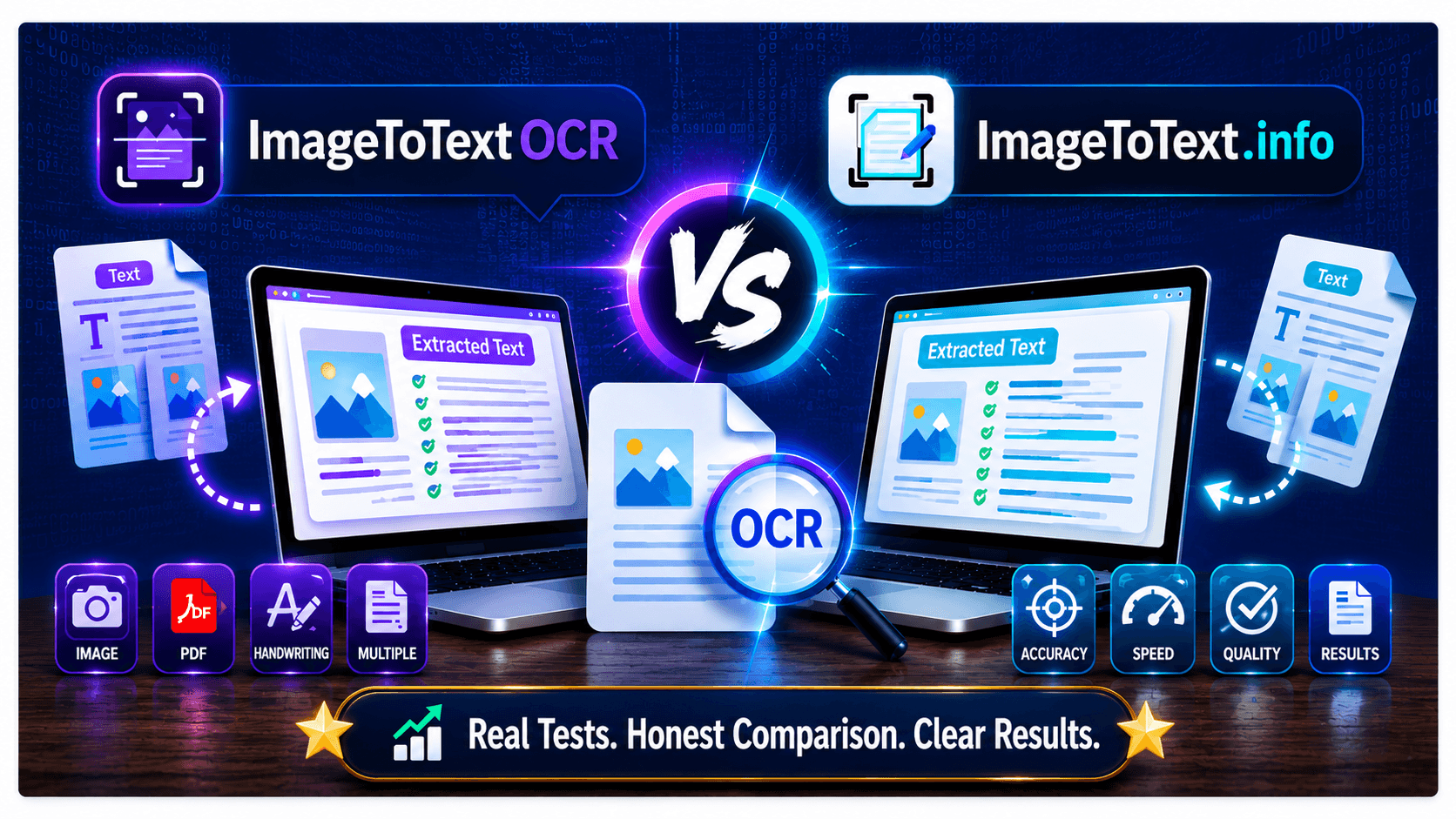
Tool | Best For | Free | AI OCR | Batch Upload |
ImageToTextOCR | Fast, accurate OCR with bulk image conversion | ✅ Yes | ✅ Yes | ✅ (Up to 50 images for registered users ) |
ImgOCR | Quick OCR for occasional image-to-text tasks | ✅ Limited | ✅ Yes | ✅ Limited (Up to 30 images with Pro) |
i2OCR | Completely free batch OCR without registration | ✅ Yes | ❌ No | ✅ Yes |
ImageToText.info | Simple bulk image-to-text conversion | ✅ Yes | ❌ No | ✅ Limited (Up to 50 images with Pro) |
NewOCR | Unlimited free OCR for images and PDFs | ✅ Yes | ❌ No | ✅ Yes |
1. Image ToTextOCR
Accurate AI-enabled OCR with bulk support.
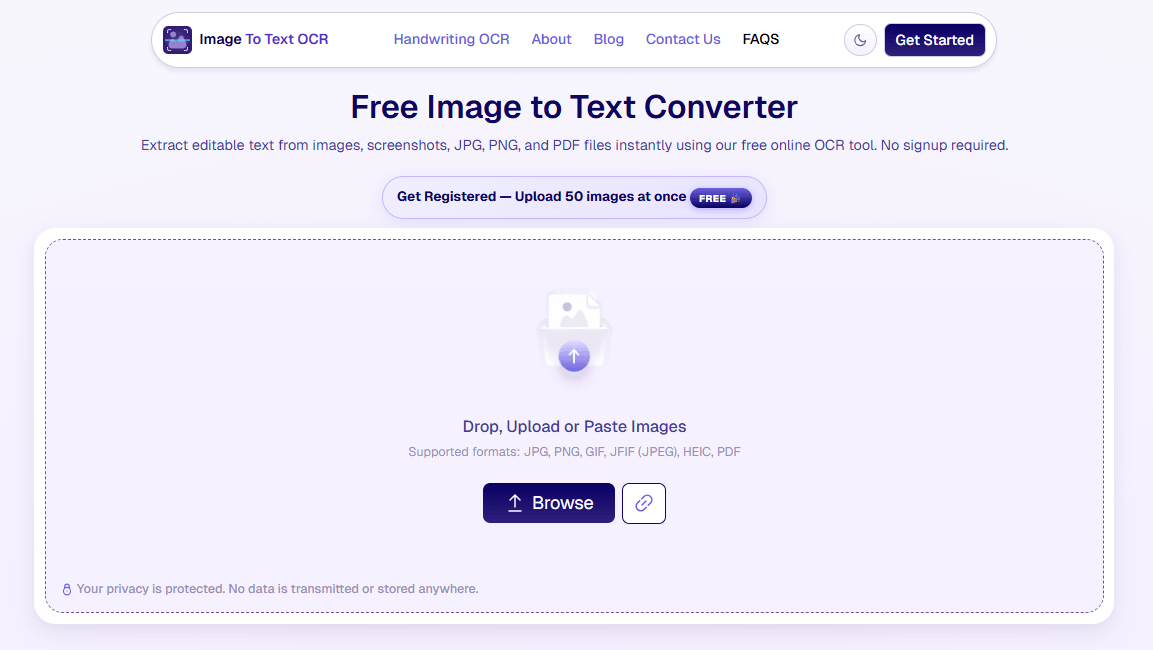
ImagetotextOCR.com is an excellent free image to text converter that provides fast and accurate text extraction. It is especially great for bulk extraction and supports a wide range of formats.
Key features:
- AI-driven accuracy: Reads messy handwriting and low-quality scans that break lesser tools.
- Multi-format support: Works with JPG, PNG, PDFs, and screenshots.
- No signup: Fully accessible without registration.
- Fast turnaround: Returns extracted text within seconds.
- Copy or download: Grab your output however you like.
2. ImgOCR
Decent free OCR, if you can look past the clutter.
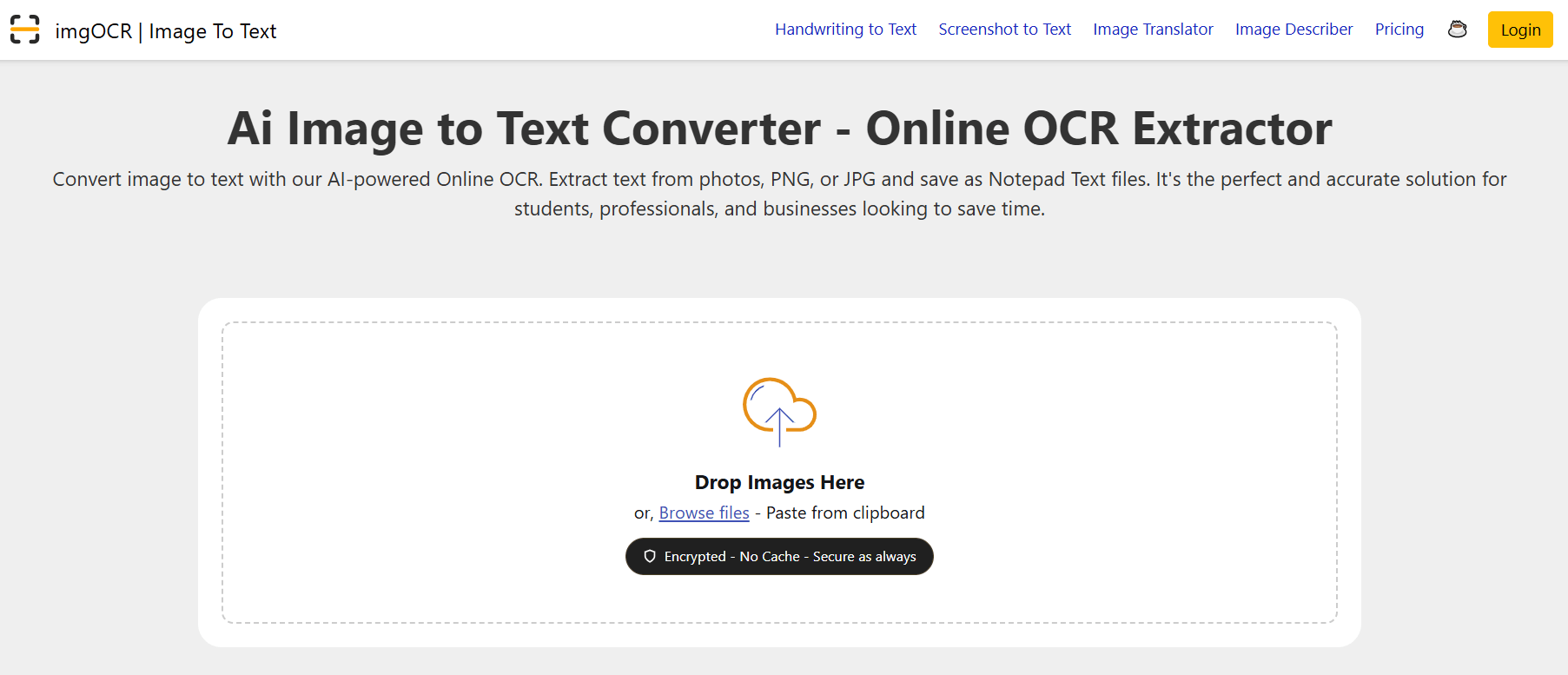
ImgOCR is fine for quick, occasional jobs. It has the basics down right. The free tier lets you run up to 3 images without logging in, and upgrading to Pro bumps you to 30 images per queue.
Key features:
- 3 images free, no login required
- 30 per queue on the Pro plan
- Straightforward, no-fuss conversion
Worth noting: the interface leans heavily on ads, so it feels busier than it needs to be.
3. i2OCR
Completely free batch OCR, no account needed.
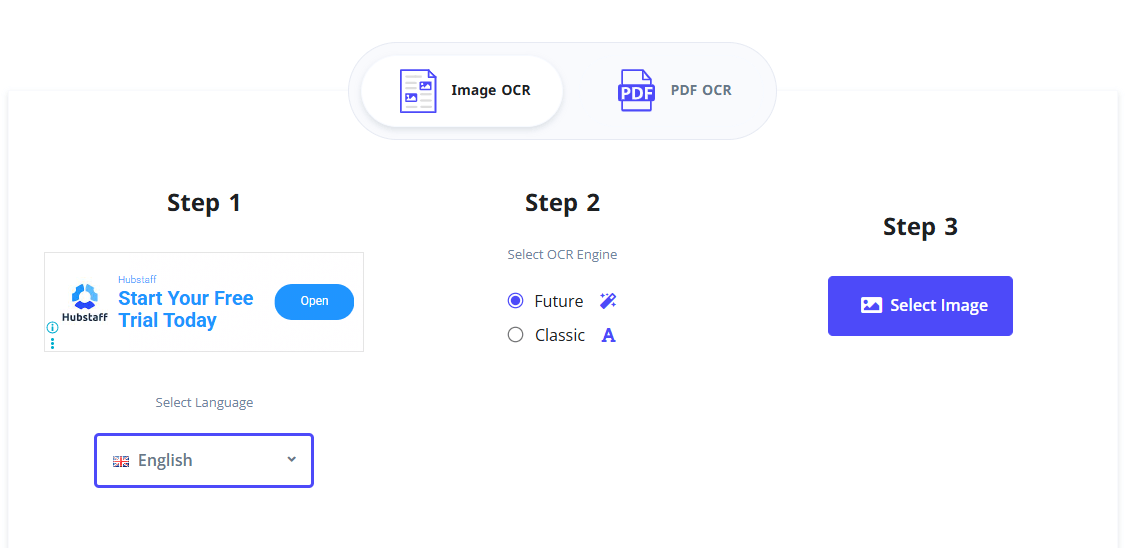 i2OCR is a solid pick if you've got a stack of files to get through. It has dedicated batch OCR pages built for processing multiple images at once, and the whole thing is free with no registration wall. Nothing flashy, but it delivers.
Key features:
- Dedicated batch OCR pages
- 100% free
- No registration
4. ImageToText
Simple, free, and built for batch image-to-text jobs.
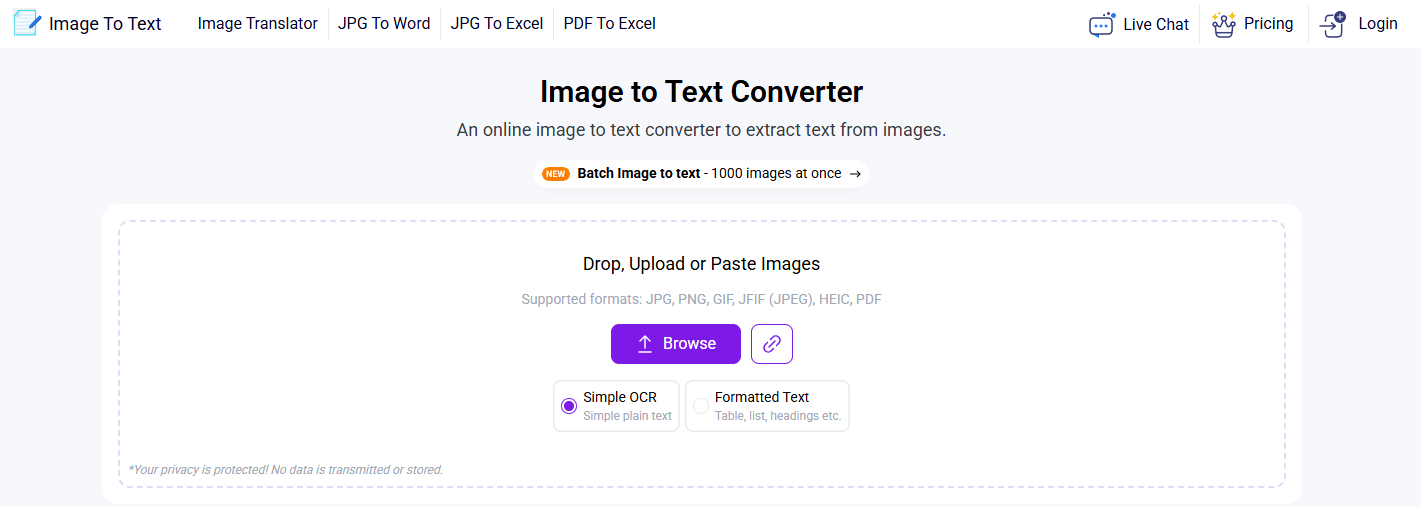
imagetotext.info keeps things lean. It has a dedicated bulk image-to-text page, so converting several images in one go is the whole point rather than an afterthought. Free to use and easy to get started with.
Key features:
- Dedicated bulk image-to-text page
- Free
- Quick and minimal
5. NewOCR
Unlimited uploads on the free tier, no account required.
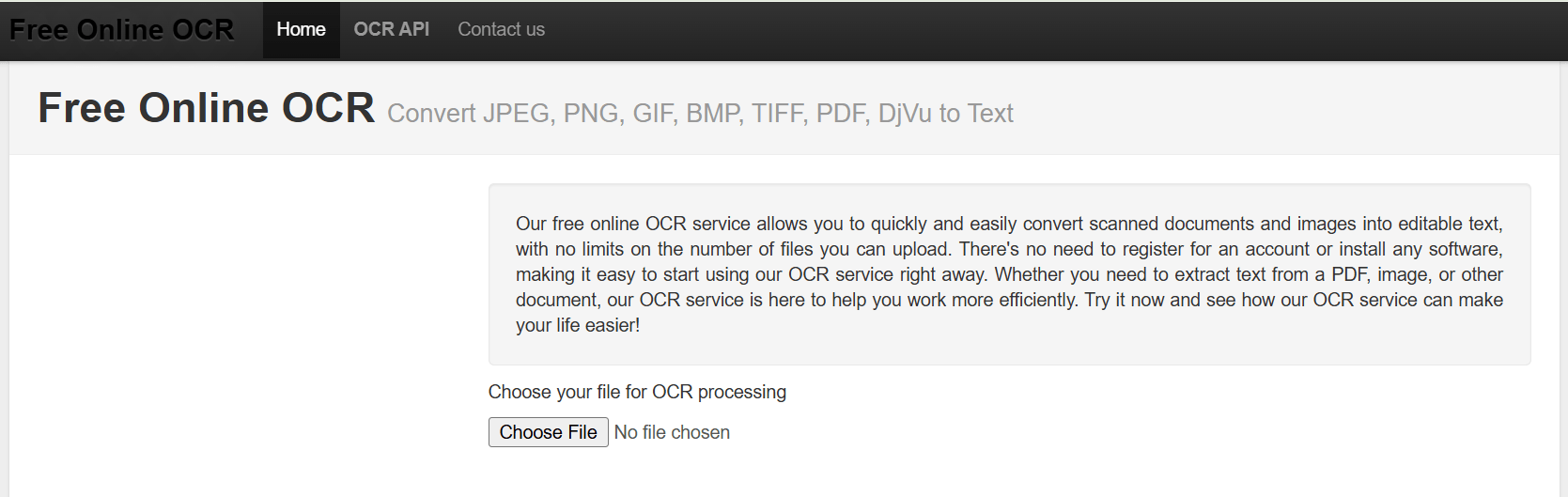
NewOCR's standout claim is the lack of upload limits on its free tier, which makes it tempting for heavy users who keep bumping into caps elsewhere. No registration needed either. The interface is on the dated side, but it does what it says.
Key features:
- Claims unlimited file uploads (free tier)
- No registration
- Handles images, PDFs, and multi-page files
Use Cases of OCR
OCR shows up in more places than most people realize, often quietly running in the background of tools you already use. Anywhere text is stuck inside an image or on paper, OCR is the thing setting it free. Here's where it earns its keep.
1. Banking and Finance
This is OCR's home turf. Banks lean on it constantly to cut manual data entry out of high-volume paperwork.
- Reading cheques and processing deposits
- Scanning invoices and receipts for accounting
- Pulling details from ID documents for KYC checks
2. Healthcare
Hospitals run on paperwork, and OCR is how a lot of it goes digital.
- Digitizing patient records and intake forms
- Reading handwritten prescriptions (where ICR really shines)
- Making old paper archives searchable
3. Education
From the admin office to the classroom, OCR quietly handles the tedious stuff.
- Grading bubble-sheet exams (that's OMR doing the work)
- Turning printed textbooks and notes into editable, searchable text
- Digitizing library archives and old records
4. Legal
Law firms drown in documents, and OCR helps them stay afloat.
- Converting contracts and case files into searchable text
- Speeding up e-discovery during litigation
- Archiving decades of paper filings
5. Logistics and Retail
Speed matters here, and OCR keeps things moving.
- Scanning shipping labels and tracking numbers
- Automating invoice and receipt processing
- Reading barcodes and packaging text for inventory
Here's a quick snapshot of who uses what:
Industry | Main OCR Job |
Banking | Cheques, invoices, ID verification |
Healthcare | Records, prescriptions, intake forms |
Education | Exam grading, digitizing books |
Legal | Contracts, e-discovery, archiving |
Logistics | Labels, tracking, inventory |
Government | IDs, passports, public records |
Conclusion
OCR is a very useful technology that improves efficiency and productivity by allowing the quick conversion of images to text. There are different parts of an OCR conversion process, including scanning, preprocessing, segmentation, etc.
Nowadays, OCR is used commonly as an online tool or in the form of mobile apps. Some excellent OCR tools that you can find online include Imagetotextocr.com and i2ocr.com. We’ve mentioned other options above as well.
OCR is used in many industries, including education, logistics, retail, and medical.
Frequently Asked Questions About OCR
Can OCR read handwriting?
Yes. Modern AI-powered OCR can recognize handwritten notes, forms, and documents. For the best results, use an AI-powered Handwriting to Text Converter to convert handwritten text into editable and searchable text.
Is OCR Safe to Use?
Most online OCR tools are safe for general documents. However, avoid uploading highly sensitive or confidential files unless the service clearly explains how your data is stored and protected.
What file formats can OCR typically process?
Most OCR tools handle JPG, PNG, TIFF, BMP, and PDF as input formats. Some also support HEIC and WEBP. Output is typically plain text, DOCX, or searchable PDF depending on the tool.
Does OCR work on photographs taken with a phone camera?
Yes, provided the image is adequately lit, in focus, and reasonably straight. Blurry, shadowed, or heavily angled photos reduce accuracy significantly. Most modern mobile OCR tools include preprocessing to compensate for common phone camera issues.
Is OCR accurate enough to use without reviewing the output?
No. Even high-accuracy OCR produces errors, particularly on low-quality scans, unusual fonts, or mixed layouts. Proofreading the output against the source is standard practice, especially for documents where precision matters.
What is the difference between a searchable PDF and a regular scanned PDF?
A scanned PDF is an image of a document with no underlying text layer. A searchable PDF has an OCR-generated text layer beneath the image, allowing the content to be searched, copied, and indexed. OCR is what converts one into the other.
Can OCR handle multiple languages in the same document?
Some tools can, but performance varies. Major languages are well-supported; mixed-language documents, particularly those combining scripts like Latin and Arabic, are harder for most engines to handle accurately without explicit multilingual configuration.