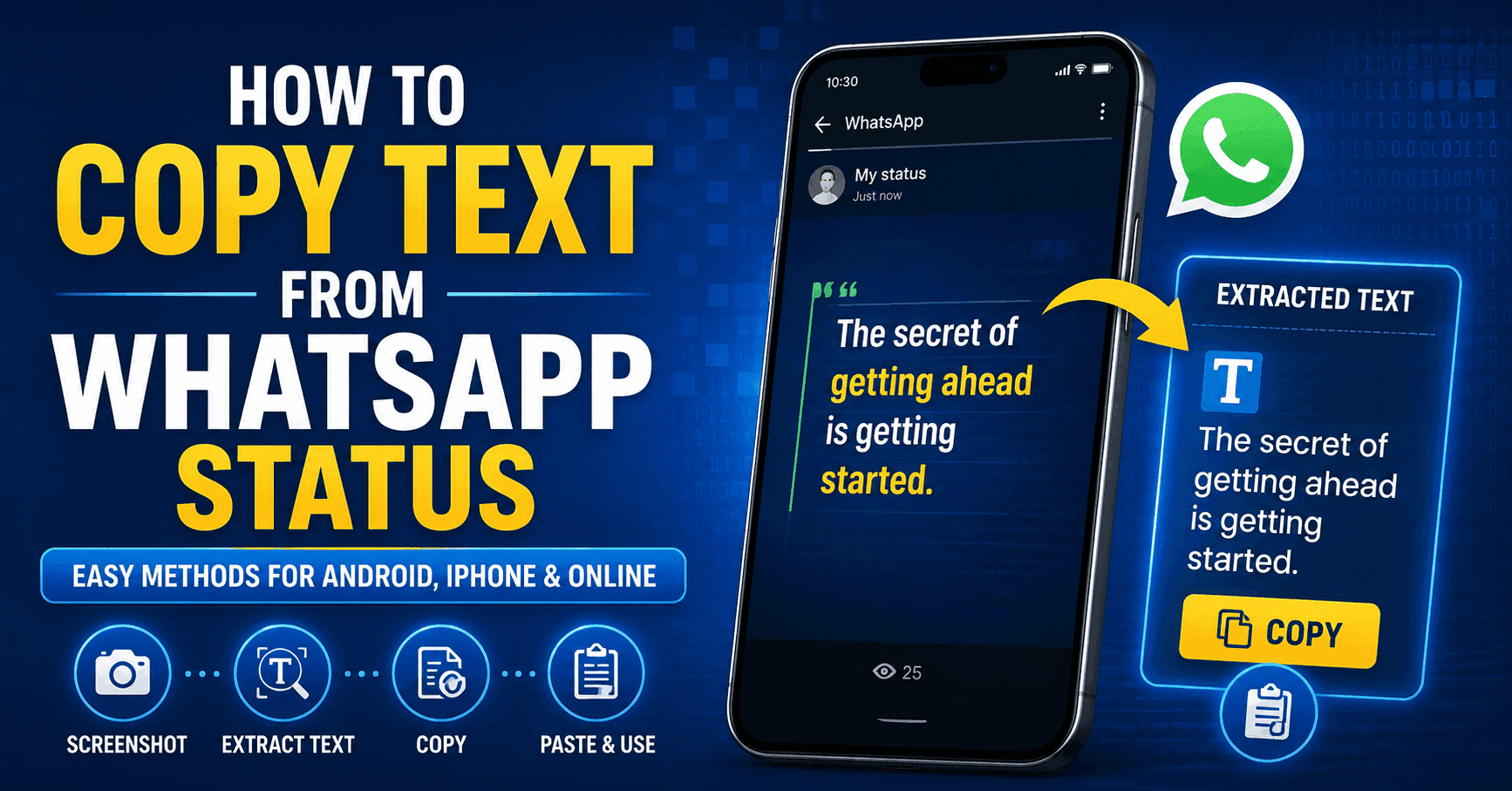
WhatsApp does not let anyone copy text from status, and there’s no legitimate reason behind it. But if someone shares a status with useful information that you want to copy and share with your friends, then there are some valid methods for that that don’t demand manual effort.
This blog highlights three different methods that anyone can use to extract text from WhatsApp status.
- Use mobile built-in features
- Use the online OCR tool
- Use the Universal Copy app on Android
Let’s dive into them.
Why WhatsApp Does Not Allow Copying Text from WhatsApp Status
WhatsApp puts a strong emphasis on users’ data and privacy. And if a person posts a text status, WhatsApp doesn’t allow anyone to copy and use it. However, WhatsApp hasn’t officially announced any legitimate reason behind this restriction, but it could be because of the following several reasons:
- Maybe the person has unintentionally posted the status and doesn’t remember to delete it.
- The status will automatically disappear after 24 hours; that is why WhatsApp doesn’t allow users to copy status text, so no one can misuse it.
- The person might have posted a status for a specific person, yet forgot to change the status audience.
Methods to Copy Text from a WhatsApp Status
Here’s a complete explanation and step-by-step guide on how a person can copy text from a WhatsApp status using these methods.
Method 1: Take a Screenshot and Use the Mobile Built-in Feature
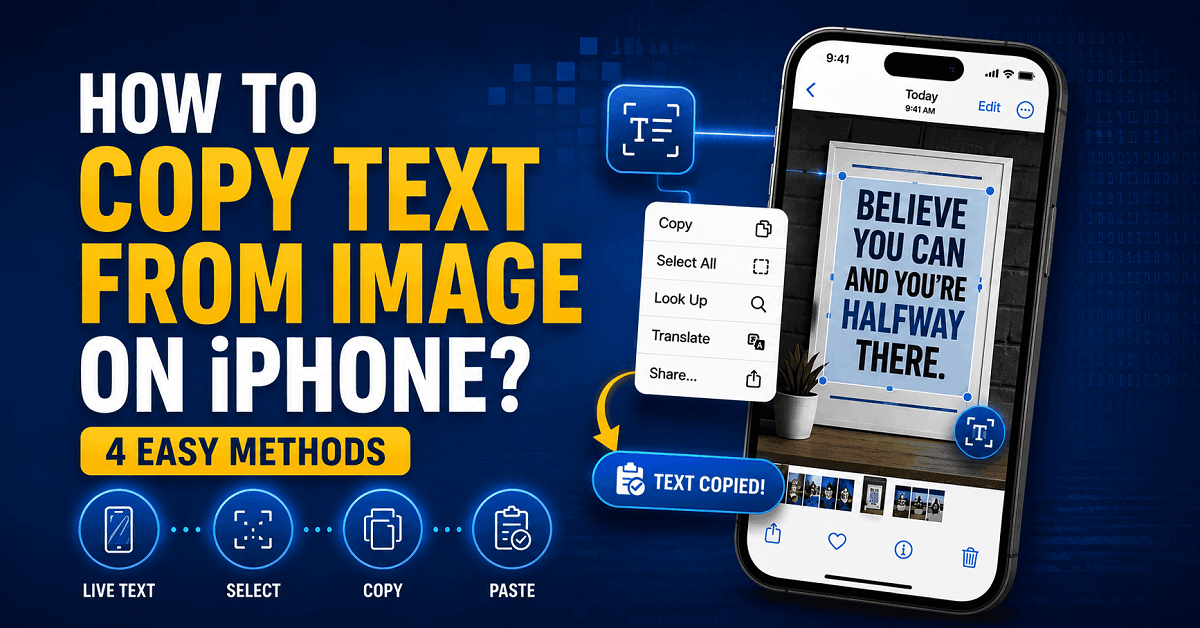
All new mobile phones have their own built-in OCR feature that can be used to extract text from images and screenshots. iPhone offers Live Text, while Android uses Google Lens to convert images into text.
For iPhone Users:
First of all, ensure the Live Text feature is enabled. Go to Settings, then General, then Language & Region, and there you will see Live Text. Turn it on and close the Settings app.
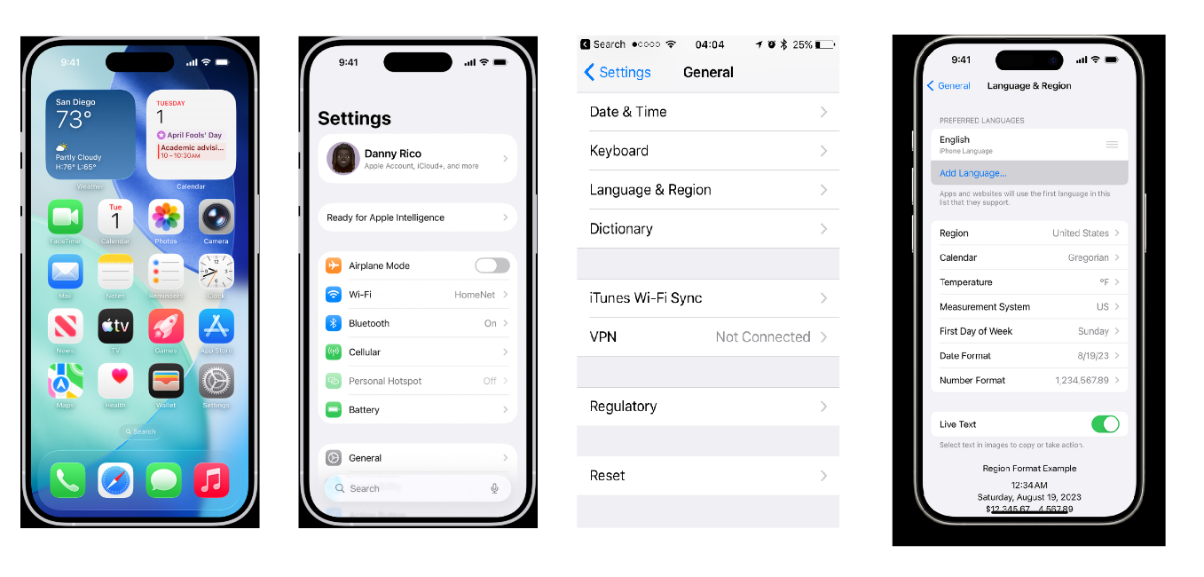
Once enabled, go back to your WhatsApp and open the status from which you want to extract text.
Take a screenshot and then open it.
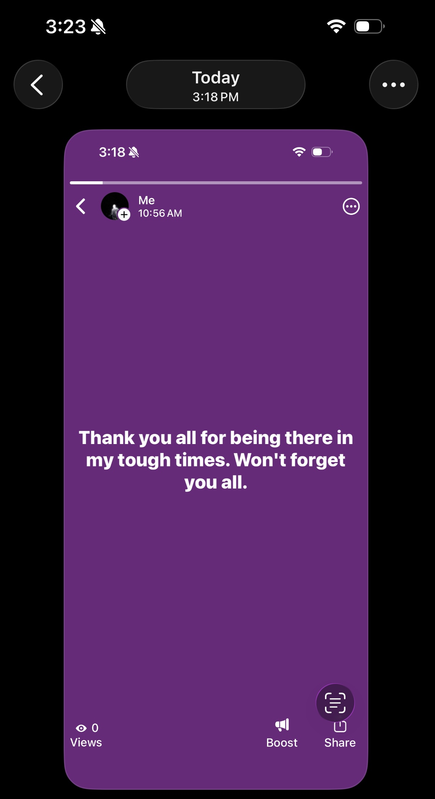
Hold on to the text within the screenshot, and in a second, the iPhone will automatically select that text, which you can copy.
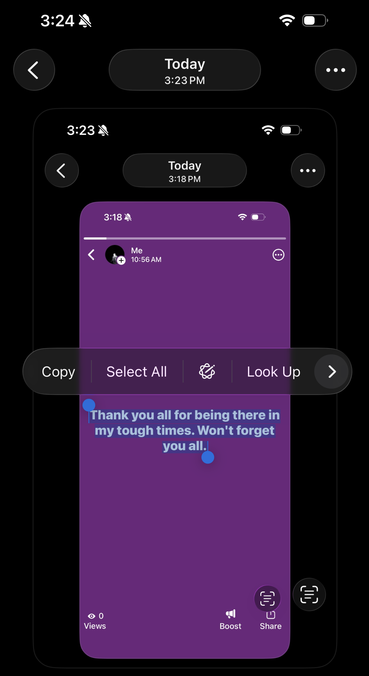
This is how you can easily copy text from a WhatsApp status without any hassle.
For Android Users:
In the latest Android devices, Google Lens comes pre-installed, which lets you extract text from images with a single click.
Take a screenshot and then share it on Google Lens.
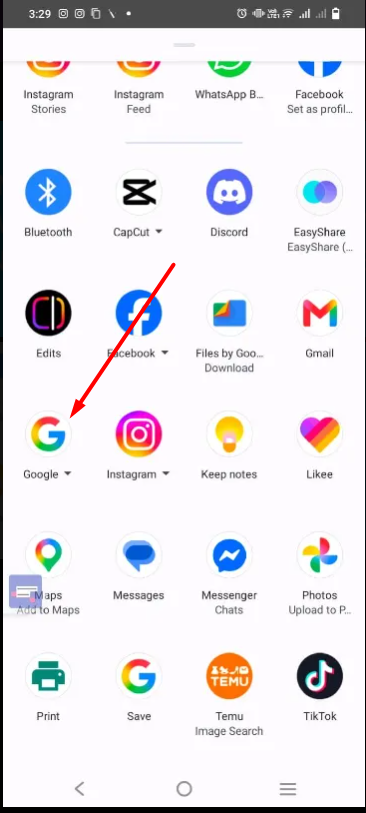
Google Lens will automatically extract the text from the image and provide you with the option to copy it.
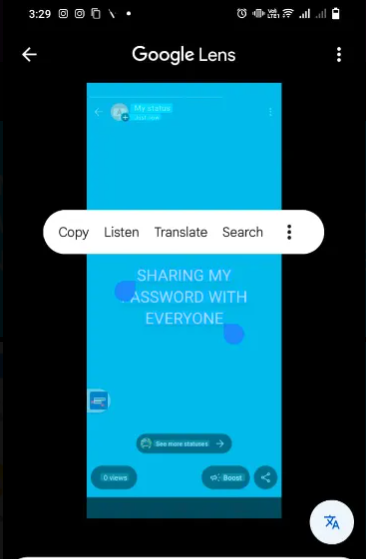
You can also crop the image to only extract the text of a specific area.
This is how the text extraction process works on Android and iPhone devices if you use their built-in features.
Method 2: Use the Image to Text OCR tool
Image to Text OCR is a free online tool that you can use to extract text from an image or screenshot. This is an online web-based tool so you can also use it on older phones that do not provide a built-in OCR feature or have low storage. It utilizes advanced AI and OCR that can easily understand and retrieve text in all languages.
The process is very simple on both Android/iPhone devices.
Open the browser and visit https://imagetotextocr.com
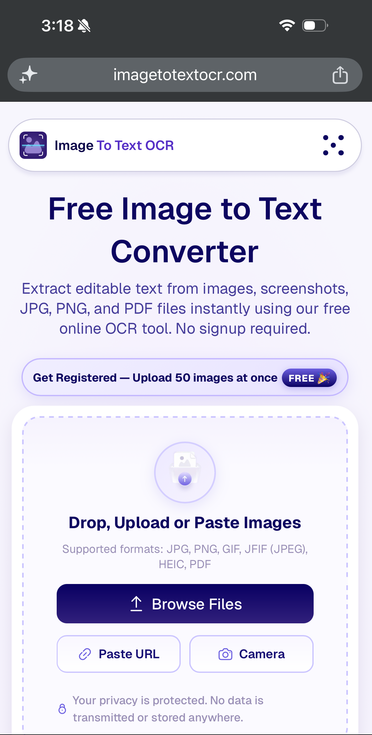
Upload the screenshot (you have taken of the WhatsApp status) from your device’s storage.
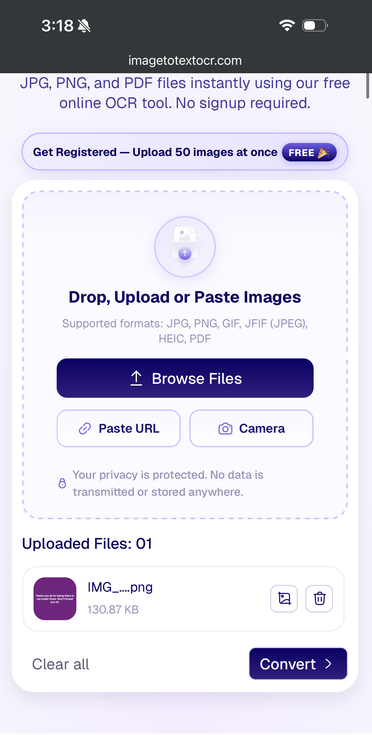
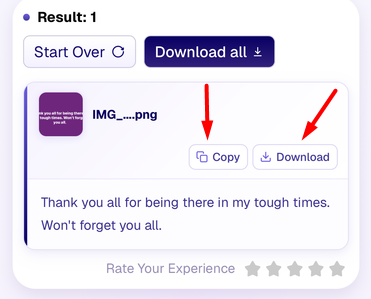
Once uploaded, the tool will instantly extract text from an image and provide you with an editable format.
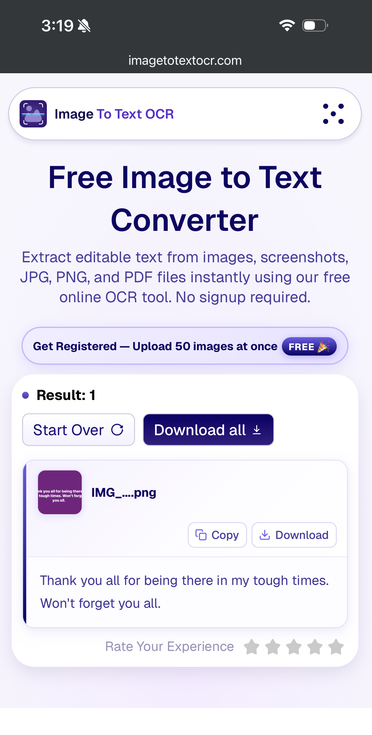
You can copy the text to the clipboard or download it in TXT format, which you can edit anytime.
Method 3: Try Universal Copy on an Android Device
Universal Copy is a mobile app only for Android users who want to copy text from WhatsApp status. Download the app from the Play Store and set it up before using it.
Here’s how you can do it.
Open your Play Store and search for “Universal Copy” and install the first app that appears in the search.
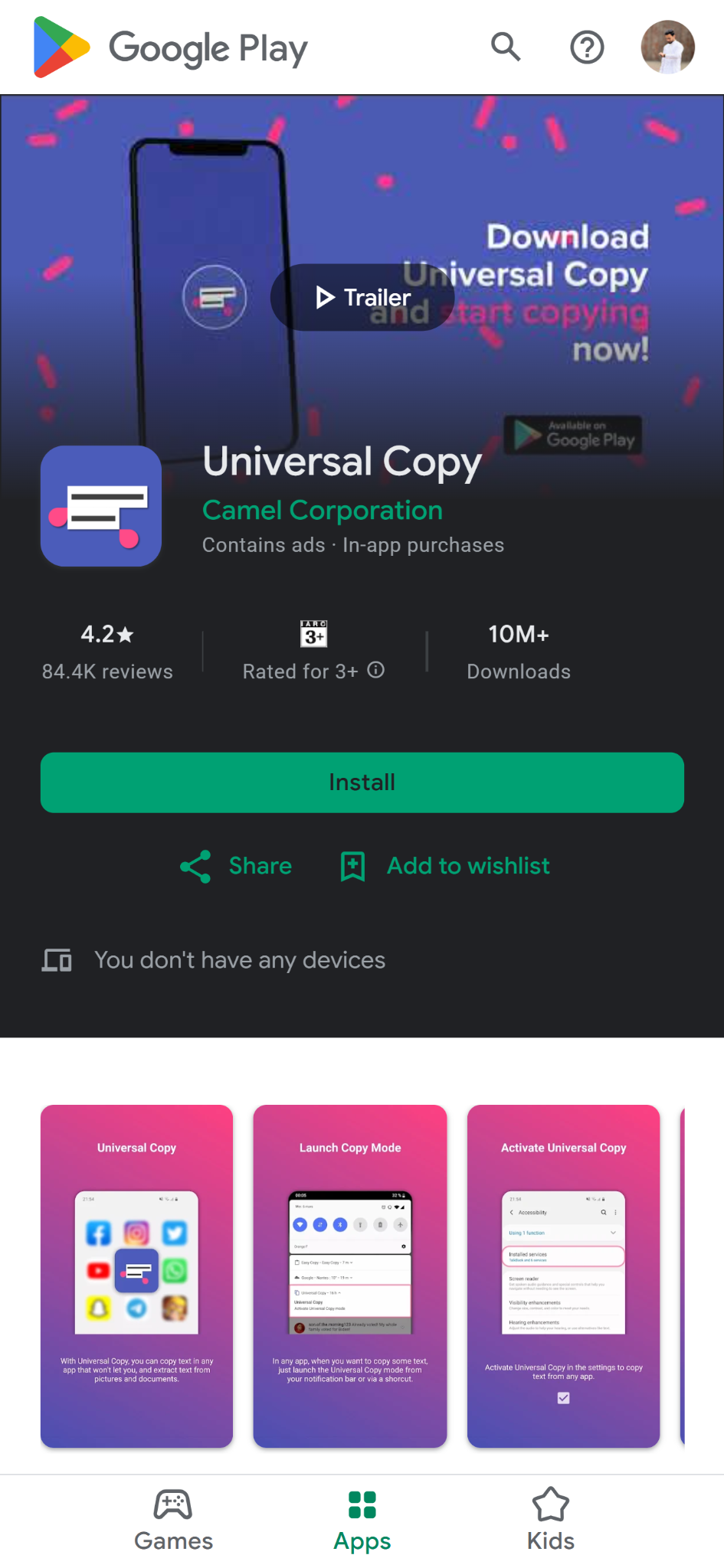
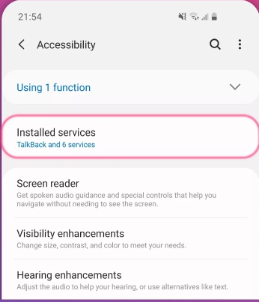
Enable the Universal Copy application. Open the app, and it will ask for certain permissions.
Once all is set, open the status and drop the panel from above. There you will see a notification of the Universal Copy app.
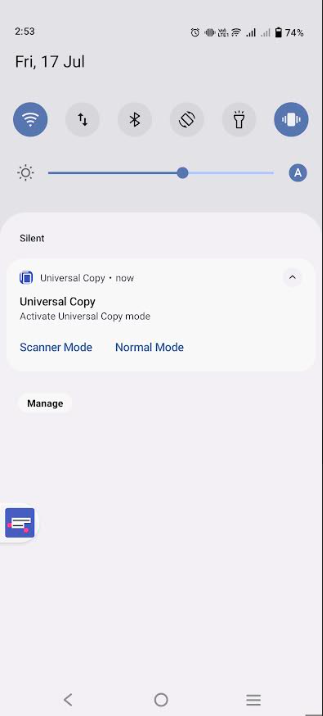
Click on it, and it will automatically scan the opened status and scan the text within it.
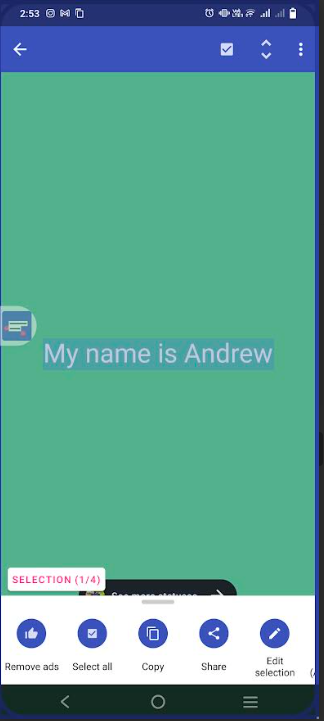
In the next second, it will provide you with the results that you can copy to the clipboard.
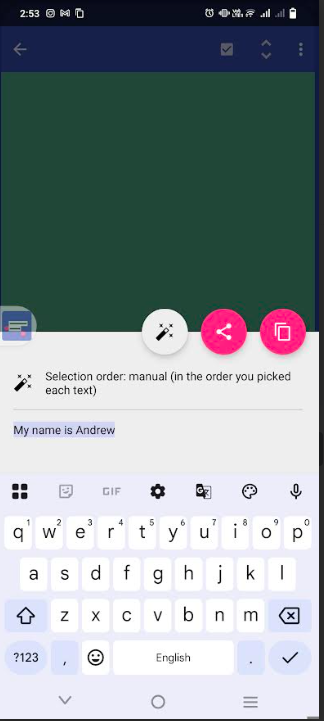
This is how you can take advantage of Universal Copy to extract text directly from the WhatsApp status without the need to take screenshots.
Which Method to Rely on for Copying Text from WhatsApp Status
In the end, the overall choice of choosing a specific method depends on your device and needs. For instance, if you have an iPhone that supports iOS 15 or above, you can easily extract text from WhatsApp status using Live Text. Similarly, you can use Google Lens on your latest Android phones to copy text from screenshots.
In case your device does not support the latest operating system, then the easiest and most reliable method is to use Image to Text OCR. It can promptly convert WhatsApp status text into an editable format without the need to download any application.
Final Thoughts
To summarize, copying text from WhatsApp status is straightforward, provided you know the proper method for doing it. There are various ways to do this, such as using your phone’s built-in OCR, an online Image to Text OCR tool, Universal Copy on Android, or the WhatsApp Web app. You can select the best one depending on the device and your preference. These methods can help you save or reuse text in your own status or any status that is allowed for you.
Frequently Asked Questions (FAQs)
Can I also copy the caption from a WhatsApp status?
You cannot directly copy text from the caption of a WhatsApp status. But there are different methods to extract text, such as using Image to Text OCR, a device’s built-in feature, or a third-party application.
Does Image to Text OCR work on both iPhone and Android?
Yes, Image to Text OCR works on all devices. You don’t have to install any application or anything. Simply take the screenshot, upload it to the tool, and it will instantly copy text from the WhatsApp image.
How can I take a screenshot of WhatsApp status on WhatsApp Web?
To take a screenshot of any image or WhatsApp status, use the Windows Snipping Tool. Press Win + Shift + S, and it dims your screen so you can choose the area you want to take a screenshot of. The image will be copied to the clipboard, which you can paste in the Image to Text OCR tool and extract text from it.
Can I Copy Text from a WhatsApp Status Without Taking a Screenshot?
Yes. iPhone users can use Live Text, while Android users can use Google Lens or Universal Copy to extract text directly. If your device doesn't support these features, taking a screenshot and using the best Image to Text converter tool is the simplest alternative.