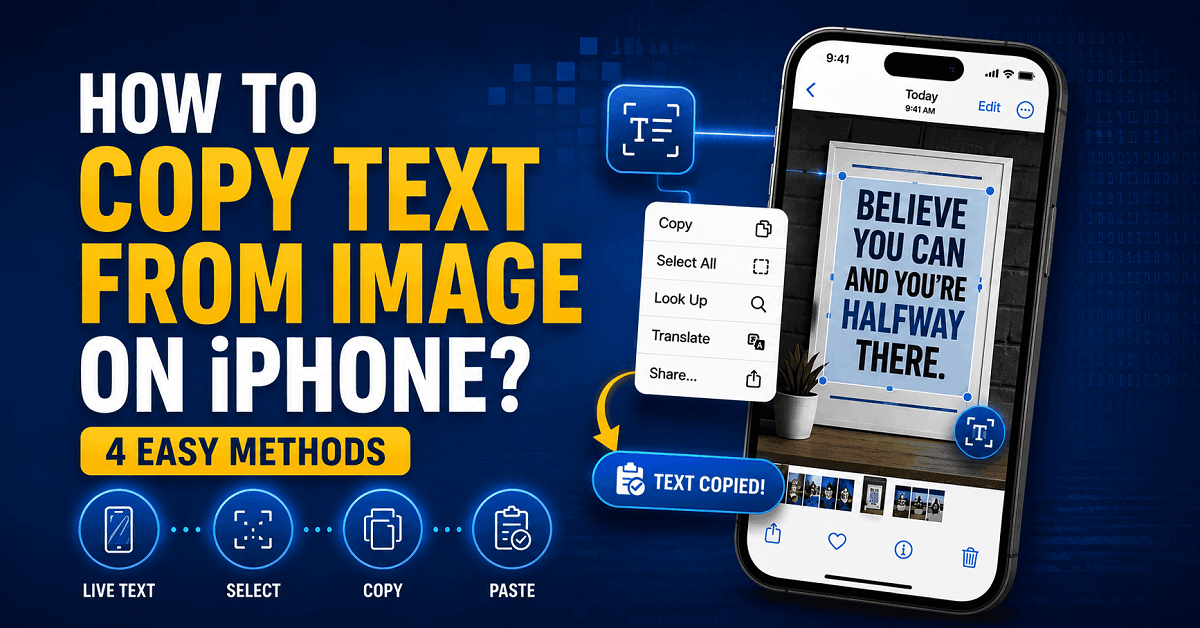
Need to copy text from a photo, screenshot, receipt, or document on your iPhone? You don't have to type everything manually. Apple's built-in Live Text feature makes it easy to select and copy text directly from images in just a few taps. However, this feature is only available on supported iPhone models running iOS 15 or later. If your device doesn't support Live Text or it isn't recognizing the text correctly, there are other reliable ways to get the job done.
In this guide, we'll show you four easy methods to copy text from an image on an iPhone. Whether you're using Live Text, an online OCR tool, Apple Intelligence, or a dedicated OCR app, you'll find the best option for your device and needs.
Methods to Extract & Copy Text from an Image on iPhone
Let’s dive into each method to extract text from an image and copy it on your iPhone.
Method#1: Use Live Text
Live Text is the latest feature built by Apple to easily extract text from an image on your iPhone. You don’t have to download a specific application to copy text from a screenshot. This feature, however, is only supported in iOS 15 or above. If you have an iPhone that does not support iOS 15, then you can’t use Live Text.
Here’s a list of devices that do not support the Live Text feature:
- iPhone 1
- iPhone 3G
- iPhone 4 & 4S
- iPhone 5, 5S, & 5C
- iPhone 6, 6S, & 6S Plus
- iPhone SE (2016)
- iPhone 7 & 7 Plus
- iPhone 8 & 8 Plus
- iPhone X
The availability of this feature starts from the iPhone XS and is available in all newer models.
How to Use Live Text?
Here’s a step-by-step guide on how you can use the Live Text feature on an iPhone to copy text from an image.
First, ensure the Live Text is enabled. Here’s how to do that: Settings>General>Language & Region>toggle on Live Text.
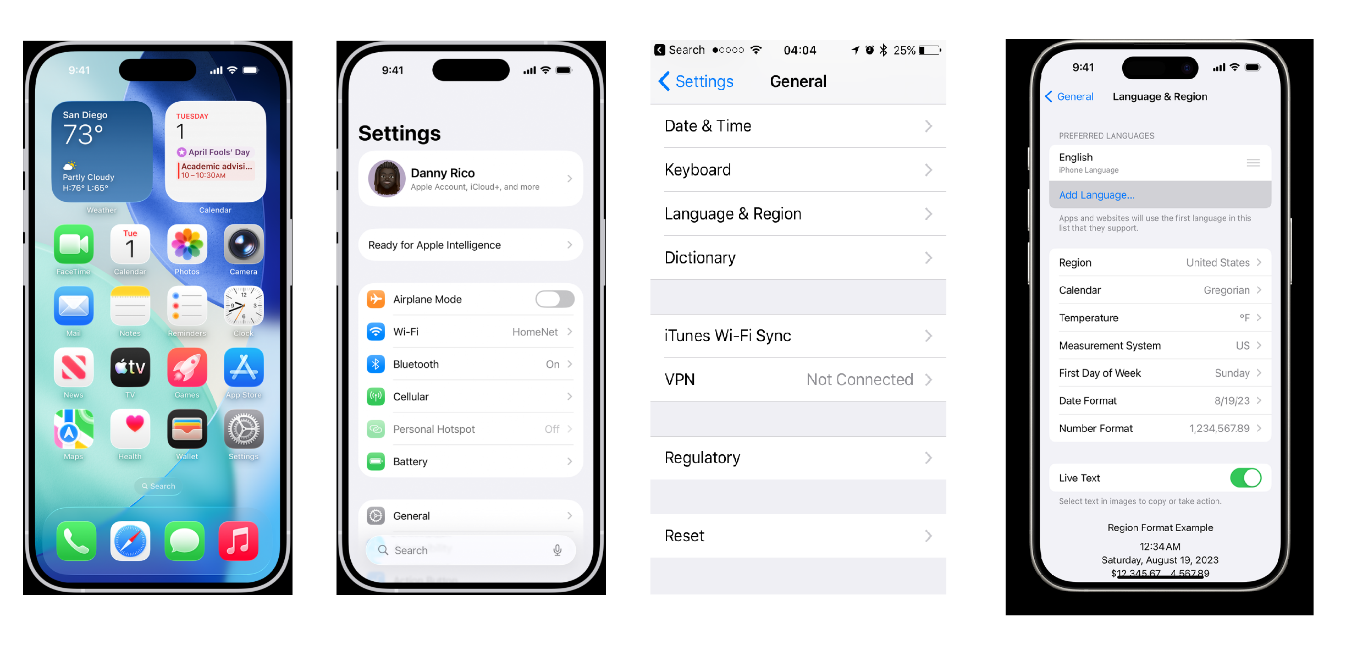
Once enabled, open the image from which you want to copy and extract text.
Long-press on the text or simply tap scan icon.
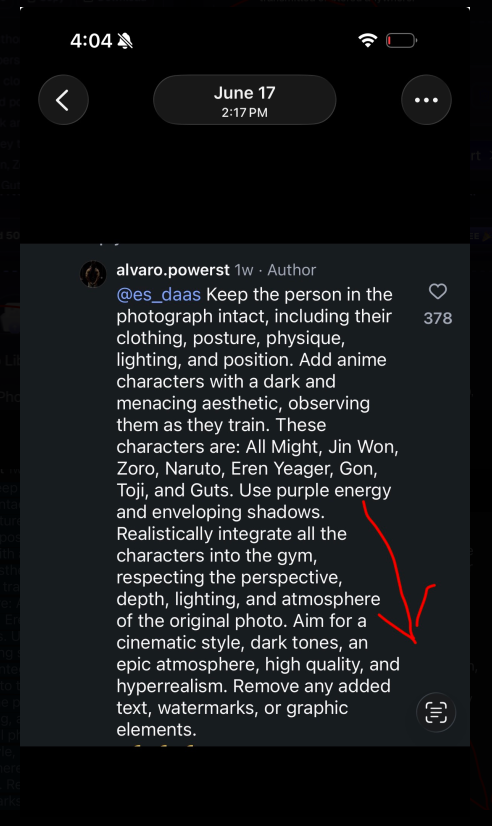
iPhone will automatically select the text, and you can simply copy it to the clipboard.
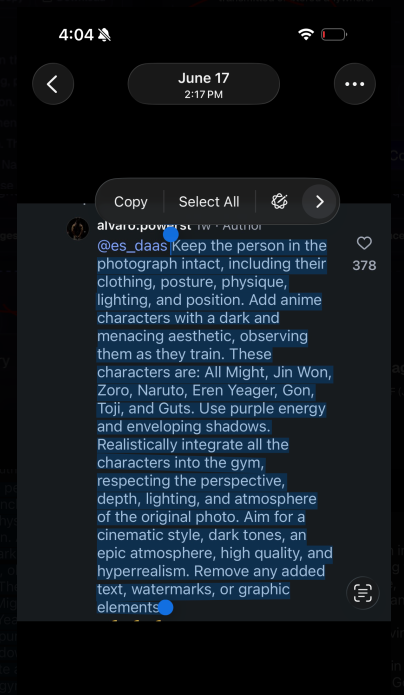
This is how you can utilize the Live Text feature on your iPhone for text extraction.
Pros & Cons
Pros | Cons |
Does not require an internet connection. | Only available on iOS 15 devices. |
Works with all kinds of images & videos. | iOS 16 is required to use Live Text for videos. |
Turns text into clickable links. | |
Perfect for long documents and PDFs. | |
Efficient in extracting text from handwritten notes. |
Method#2: Use Image to Text OCR Tool
Another easy approach to copy text from images on an iPhone is by using image to text converter. It’s a free tool that iPhone users can use for extracting text without needing to enable any feature or anything.
It is powered by advanced OCR technology to effectively understand the text within images and copy it in the same pattern and style.
How to Use ImagetoTextOCR?
Want to know how you can perform text extraction on an iPhone using ImagetoTextOCR? Follow the steps below:
Open your Safari browser and visit imagetotextocr.com.
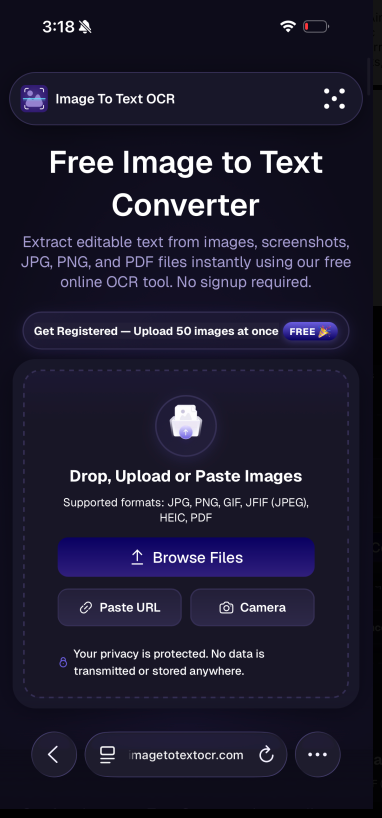
Upload the text image from device storage or paste the URL in the given field.
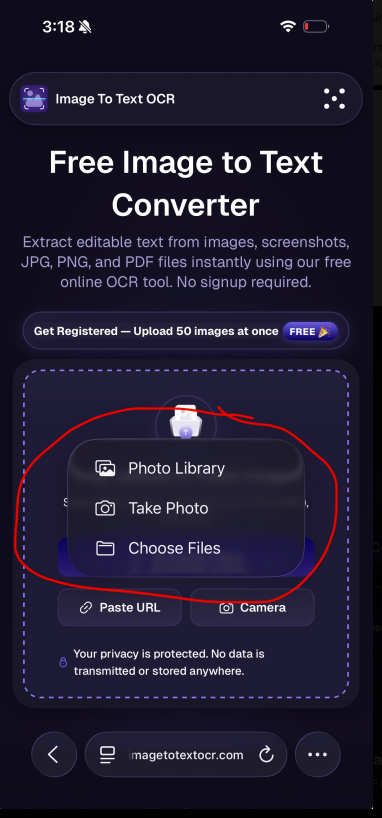
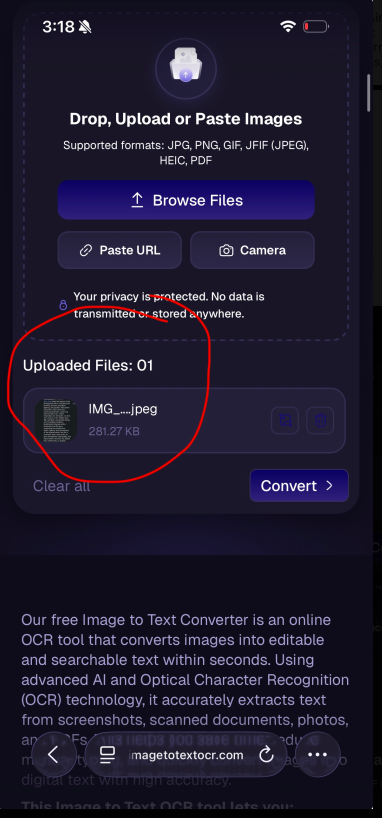
Click the “Convert” button, and within seconds, the tool will provide you with the result.
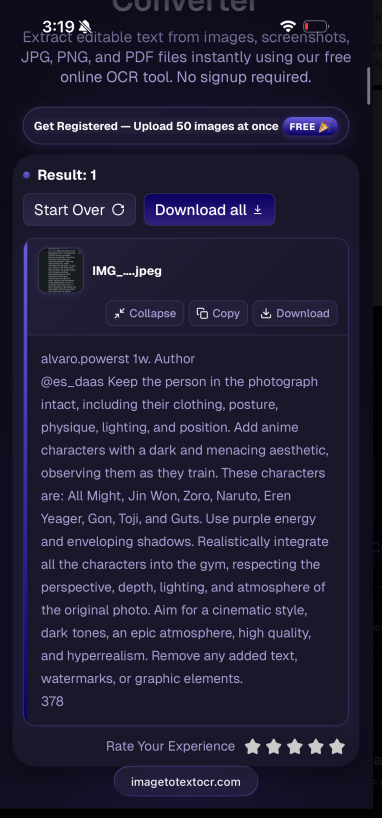
You can then copy the text to the clipboard or download the extracted text in a TXT file.
Pros & Cons
Pros | Cons |
Best for extracting text from multiple images at once. | Requires an internet connection. |
Completely free to use. | |
Offers 100% safe and secure usage. | |
No sign-up needed. | |
Built-in option to crop images on the spot. |
Method#3: Use Apple Intelligence
Apple has introduced a new feature in 2026 called Apple Intelligence (AI) that helps with different purposes. It’s very similar to Siri, but you can also chat with Apple Intelligence to perform specific tasks, including extracting text from an image.
Apple Intelligence is only available in certain models:
iPhone 15 Pro & 15 Pro Max
iPhone 16, 16 Pro, 16 Pro Max, 16 Plus, & 16E
iPhone 17, 17 Pro, 17 Pro Max, 17E, & Air
How to Use Apple Intelligence for Text Extraction?
In order to retrieve text from an image, you simply ask Siri or type “Extract text from the opened image and copy it to the clipboard.” This way, the AI will analyze the picture and find text within it. Then, it will automatically extract the text using advanced OCR and copy it to the clipboard.
You can then paste the text in Notes or a text file and save it digitally.
Pros & Cons
Pros | Cons |
Extract text from an image using simple voice or typed commands. | Only available on iPhone 15 Pro and above. |
Efficient in understanding and retrieving text from handwritten notes. | Apple Intelligence must be available in your country or region. |
Can perform additional actions, like summarizing or rewriting the text. |
|
Method#4: Use OCR Applications
Last but not least is using a dedicated mobile application to retrieve text from screenshots. There are many applications you can find in the App Store, but the best one is Image to Text – Scan & Convert. It offers free usage, and you can extract text from multiple images at a time.
How to Use the App?
Install the application from the App Store.
Open it, and you will see different options there. If the image is saved in your phone storage, click “Gallery,” but if you have a physical document and need to scan it first, then use the “Camera” option.
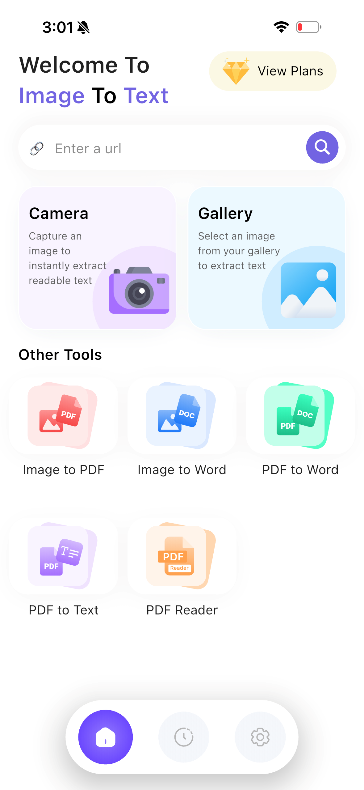
Upload the image from your device storage, and it will take a few seconds to extract text.
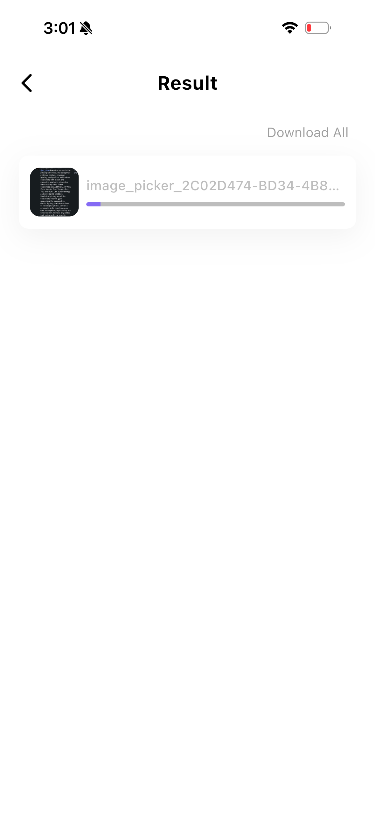
Then it will give you the results that you can copy or download in a TXT file.
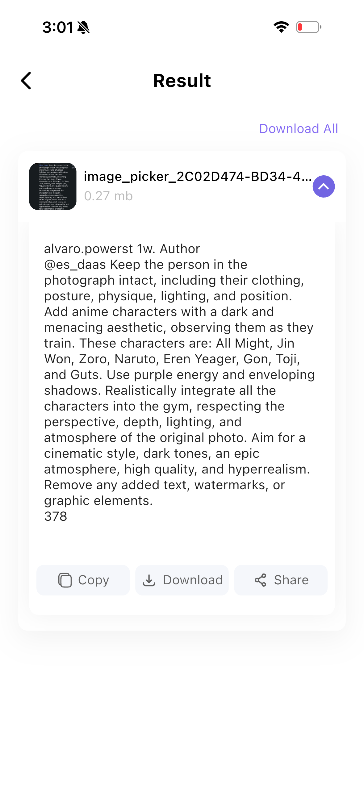
This is how you can extract text from an image on your iPhone.
Pros & Cons
Pros | Cons |
Available for almost all iPhone models. | The free version includes ads on the screen. |
Extract text from images in any language. | Bulk processing may require a premium plan. |
Camera option available to scan images in real-time. |
|
Which Method Should You Choose?
The overall choice depends on your needs and requirements. If your device does not support iOS 15 or above, then using an OCR application or Image to Text OCR tool is the best option to extract text from images on an iPhone. However, If your iPhone supports Apple Intelligence, you can also use its built-in text recognition features. Here's a quick comparison to help you decide which method to pick:
If you want to.. | Best Method |
Copy text quickly without an internet connection | Live Text |
Use AI-powered text recognition on a supported iPhone | Apple Intelligence |
Extract text from multiple image formats with high OCR accuracy | Image to Text OCR |
Scan physical documents using your iPhone camera | OCR Application |
Final Thoughts
Let’s wrap things up.
In the end, copying text from images on an iPhone is very simple. There are different methods that you can use, such as Apple’s built-in features or third-party OCR tools and apps. Live Text offers the fastest offline experience on supported devices, while Apple Intelligence adds even smarter text recognition on newer iPhone models. In case your device doesn’t support these features, using Image to Text OCR or a specific application still remains a reliable alternative. Choose the method that matches your iPhone model and needs to quickly convert images into editable, searchable, and shareable text with minimal effort.
Frequently Asked Questions
Can I use Image to Text OCR on a MacBook?
Yes, you can use Image to Text OCR on a MacBook and extract text from images. The tool will automatically analyze the uploaded image and copy text from it.
Does the Live Text feature work on all iOS devices?
No. Live Text is only available on iPhones running iOS 15 or later. If your iPhone does not support iOS 15 or newer, you won’t be able to use this feature.
Which mobile application is best for text extraction on an iPhone?
Image to Text is the best application to use on your iPhone. You can install it from the App Store and can be used for free to extract text from images.
Do these text extraction methods work on old iPhones?
The majority of above discussed methods work on all iPhones. However, Live Text and Apple Intelligence are only available on newer devices.
Which image to text converter is best?
There are many image to text converters available, and the best one depends on your needs. If you want to compare different tools, check out our guide to the best image to text converters. If you're looking for a free and easy solution, Image To Text OCR lets you extract editable text from images in just a few seconds.