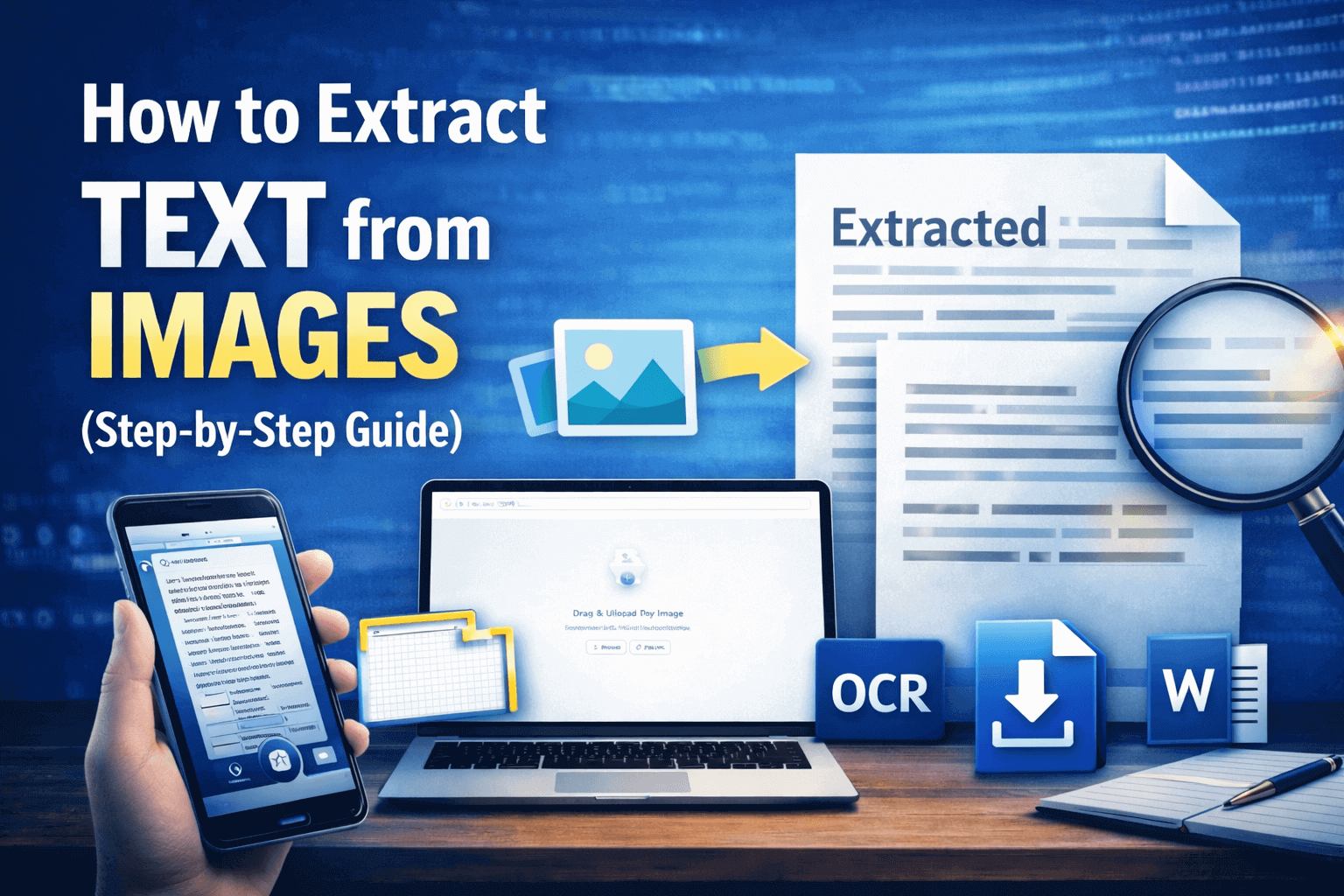
Extract text from an image by using manual transcription, mobile OCR apps, online OCR tools, Windows Snipping Tool, or Google Docs. Manual extraction requires typing the text yourself. OCR apps and online tools scan the image and convert text automatically. With Google Docs, you can extract text by uploading the image to Google Drive and opening it with Docs.
Introduction
Text extraction from an image is a common need in both personal and professional work. You might have a scanned document, a screenshot, a photo of notes, or an image containing important information that you need in editable form. Instead of retyping everything manually, there are a number of methods that can help you convert image-based text into digital text accurately. You can use apps, tools, and many other options to copy text written inside images.
In this post, we’re going to guide you on the most reliable ways to extract text from an image. We’ll go into detail for each one and walk you through them step by step.
Best Methods to Extract Text from Images
Here are the common methods for image-to-text extraction:
Copying text by hand (manual extraction)
Using mobile apps for text extraction
Using an online OCR tool for text extraction
Snipping Tool on Windows
Using Google Docs/Google Drive
Each of these methods has its own pros and cons. For instance,
Method | Pros | Cons |
Copying text by hand (Manual extraction) | Very accurate if done carefully. No internet or tools required. Full control over formatting and structure. | Slow and labor-intensive. Easy to make typing mistakes. Not suitable for large volumes of text. |
Using mobile apps for text extraction | Fast and convenient. Useful for scanning physical documents instantly. Simple to use. | Accuracy depends on image quality. May struggle with handwriting or complex layouts. Some apps require payment or show ads. |
Using an online OCR tool | No installation needed. Works on most devices. Often supports multiple languages. | Requires an internet connection. Potential privacy concerns when uploading files. File size or usage limits may apply. |
Using Windows Snipping Tool | Quick and efficient method. Snipping Tool comes pre-installed on Windows devices. | This method can only do one image at a time, and only the area that is visible on the screen. |
Using Google Docs / Google Drive | Free to use. Automatically converts images to editable text. Easy to edit and store in the cloud. | Requires a Google account and internet access. Formatting may not be preserved perfectly. Accuracy depends on image clarity. |
Let’s go through each of these methods one by one.
Step-by-Step Guide to Extract Text from an Image
Here is a step-by-step breakdown of each method that we’ve mentioned above.
Manual Text Extraction (Typing by Hand)
Best for: Short text, highly sensitive information, or when maximum accuracy is required
Manual extraction means reading the text from the image and typing it yourself into a document. It is the most traditional approach. It takes more time, but you stay in full control of accuracy, formatting, and structure.
Steps for manual text extraction:
Open the image on a large screen. This reduces eye strain and typing mistakes.
Open an online notepad or text editor, such as Microsoft Word or Google Docs.
Carefully read one line at a time and type it exactly as shown. Avoid jumping between sections.
Proofread the entire text after finishing. Compare it directly with the image to catch missing words or punctuation errors.
Note for this method: This approach is slow for long documents. However, it is the safest option when working with confidential or sensitive content that should not be uploaded to online tools.
Using Mobile Apps for Text Extraction
Best for: Quick scanning of physical documents, receipts, notes, or signs
Mobile OCR apps use your phone camera or image uploads to detect and convert text into an editable format. This method is convenient when you are away from your computer.
A common example of mobile OCR apps is Google Lens, which is found by default in modern Android smartphones.
Below, we’ll mention the general steps + specific ones that you can follow if you are using Google Lens.
Steps to extract text using a mobile app:
Install a trusted OCR app from your app store. Or open Google Lens.
Open the app and choose the scan or upload option. (In Google Lens, you simply get an option to choose the image from your gallery or snap one directly. Here is what it looks like when you take a photo directly.)
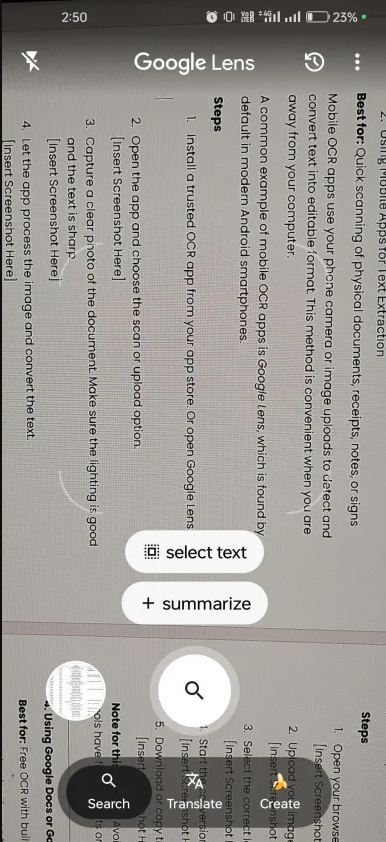
Capture a clear photo of the document/text. Make sure the lighting is good, and the text is sharp.
Let the app process the image and convert the text. If you’re using Google Lens, you can simply tap the “Select Text” button, and the text will be highlighted in blue. Here is what that looks like:
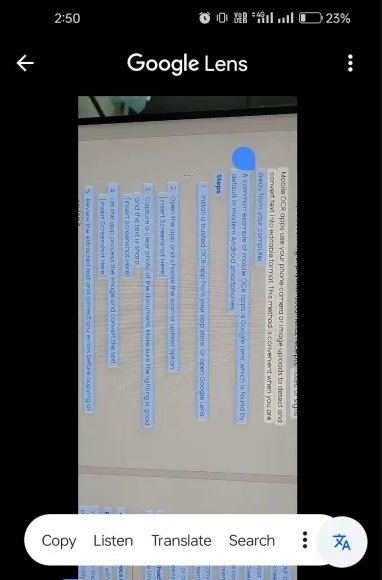
Review the extracted text and correct any errors before copying or saving it. In Google Lens, you can simply tap on “Copy” so that the highlighted text is copied to your clipboard.
Note for this method: Accuracy depends heavily on image quality. Handwritten text and complex layouts may not convert properly.
Using an Online OCR Tool
Best for: Occasional conversions without installing software
Online OCR tools allow you to upload an image through your browser. The platform processes the file and provides editable text.
The good thing about this method is that there is no installation required whatsoever. While many options exist, we have tested and ranked the best image to text converters based on accuracy and speed to help you choose the right one. For this tutorial we have choose the top one tool that is Imagetotextocr.com.
Easy steps to use the OCR tool for image text extraction:
Open your browser and go to a reliable online OCR tool. We have select this image to text converter for fast and accurate text extraction.
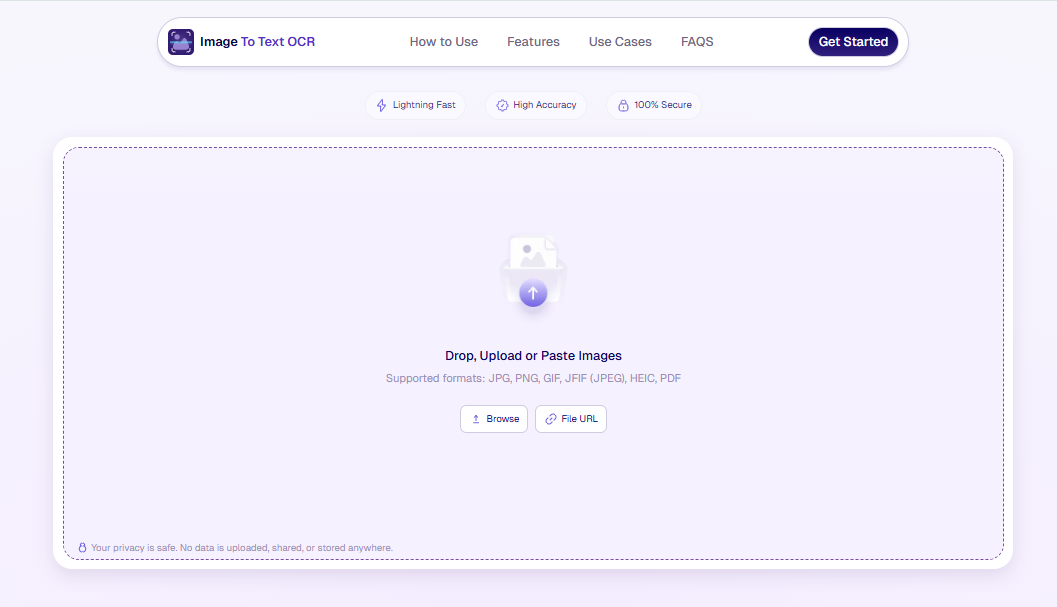
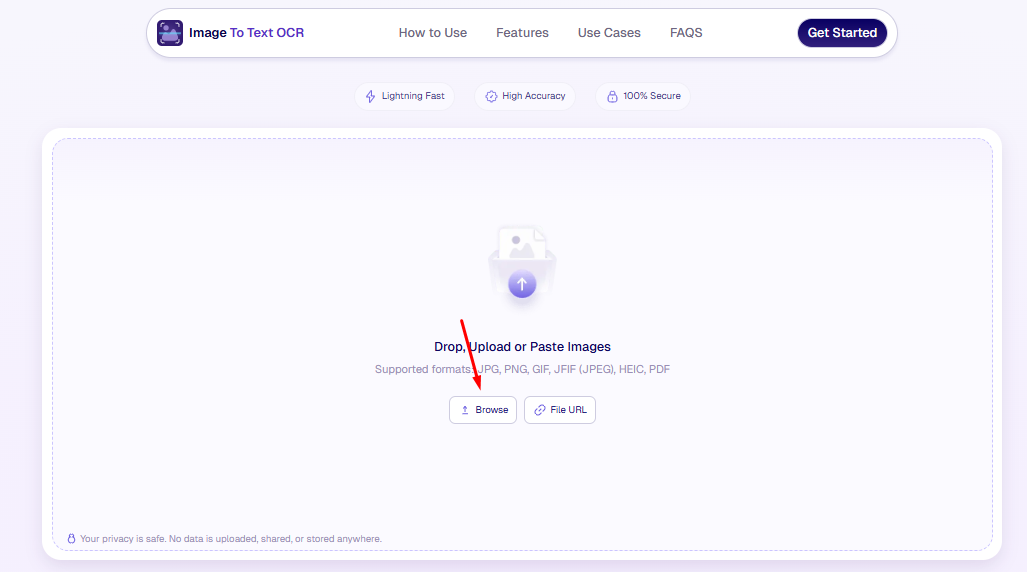
Click the "Browse" button to upload your image file. Here is what that looks like:
Use the crop image option if you need a selective part of the text from the uploaded image.
Hit the "Convert" button to start the conversion process and wait for the tool to process the file.
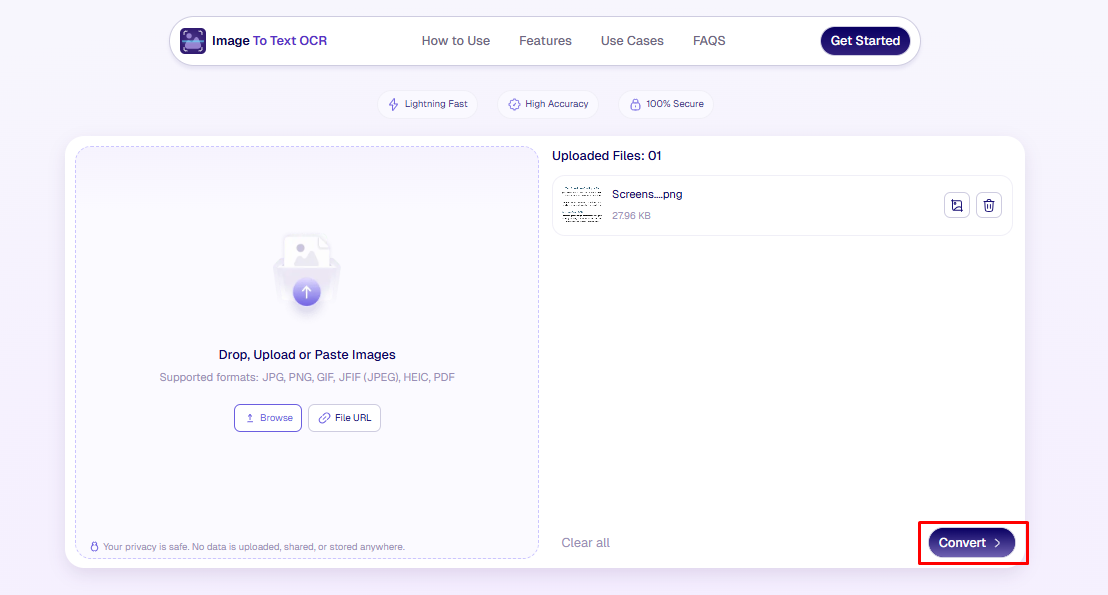
Copy or download the extracted text. Most online tools provide this feature, including our own.
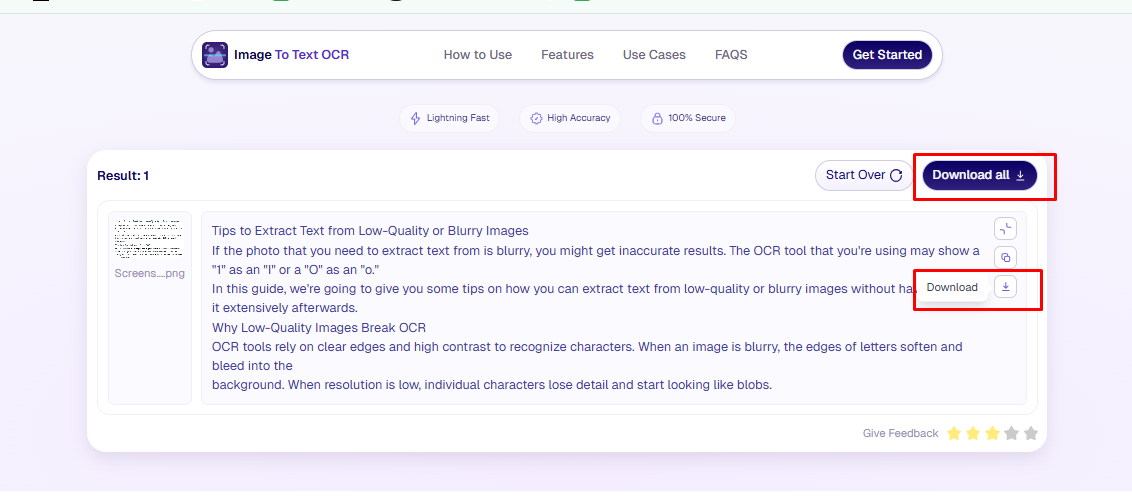
Note for this method: Avoid uploading confidential documents. Also, remember that many free tools have file size limits or daily usage restrictions. For a full step-by-step walkthrough of using the tool, see our guide on how to convert image to text.
Using Windows Snipping Tool (Built-in OCR)
Best for: On-the-fly image to text conversion for on-screen images.
You can use the Snipping Tool on Windows devices to instantly copy text from any area on your screen. You can open an image on your computer and then select the text conversion option, which will allow you to select the required area.
Key steps to use the Windows Snipping Tool:
Open the image that you wish to convert to text on your computer.
Use the SHIFT + WINDOWS + S shortcut to open the Snipping Tool.
On the tab at the top, select the Text Extraction option.
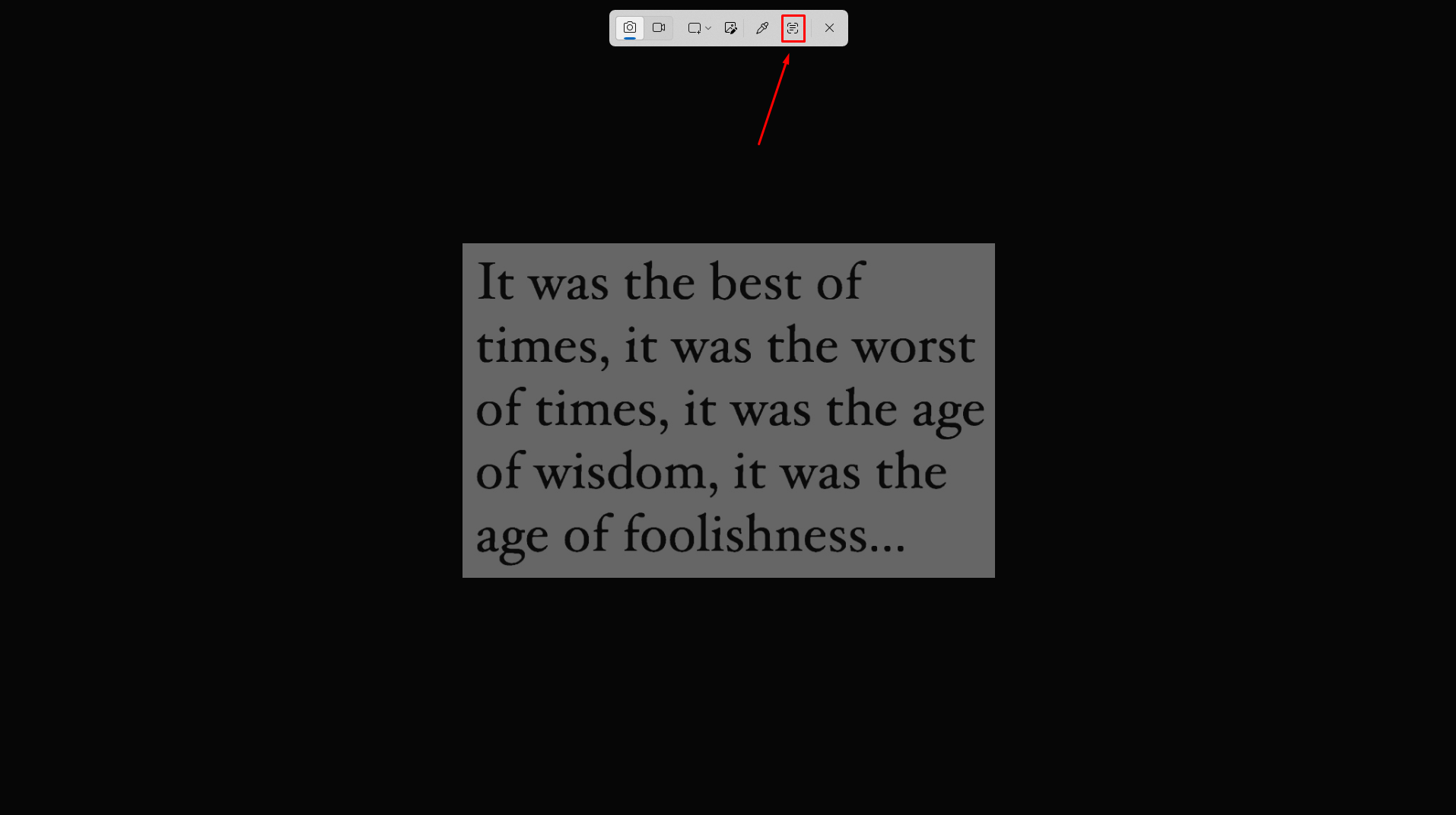
After clicking on this option, you will be prompted to select the required area.
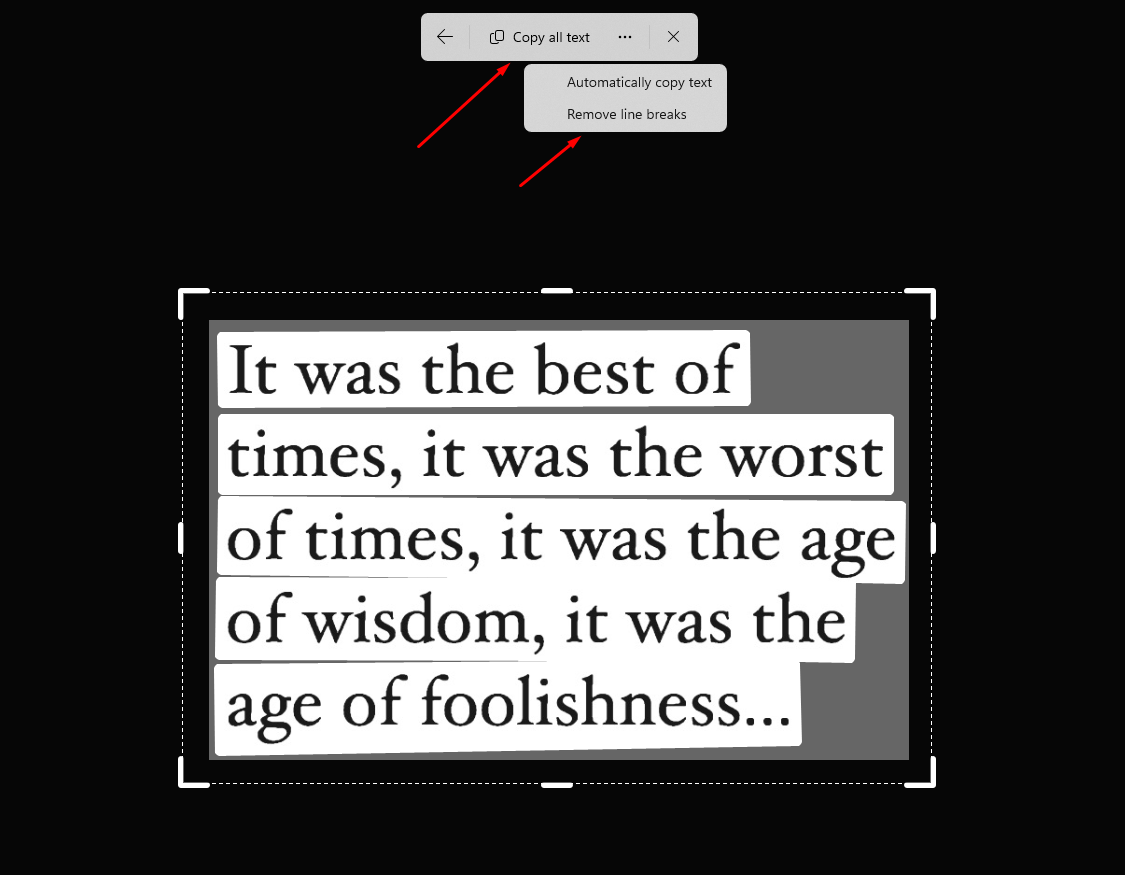
After that, you can copy the text by selecting it with your mouse cursor. If you want to copy all the text, you can use the button at the top instead.
There are some other settings that you can adjust as well, including Automatically Copy Text and Remove Line Breaks, which apply to future extractions.
Note About This Method: There is no downloading option available when you’re using Snipping Tool. It’s for quick extractions only.
Using Google Docs or Google Drive
Best for: Free OCR with built-in editing and cloud storage
You can upload an image to Google Drive and open it with Google Docs. The platform automatically converts the image text into editable content.
Steps to use Google Drive for OCR:
Log in to your Google Drive account.
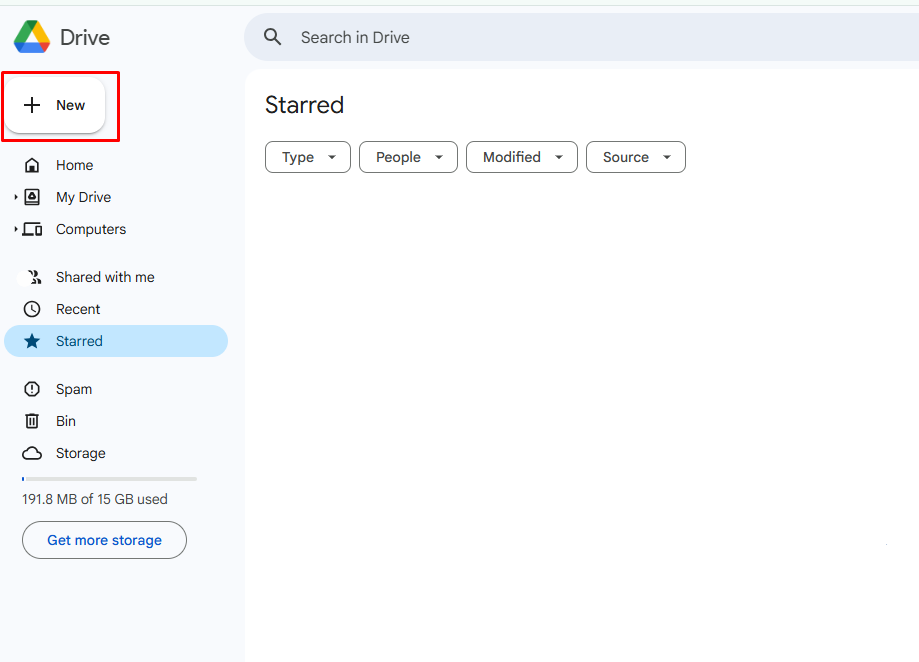
Click “New” and upload your image file.
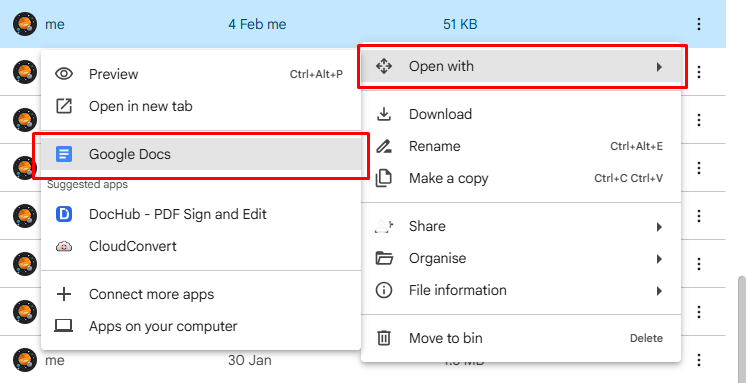
Once uploaded, right-click the image and choose “Open with” then select Google Docs.
Google Docs will open a new file. The image appears at the top, and the extracted text appears below it.
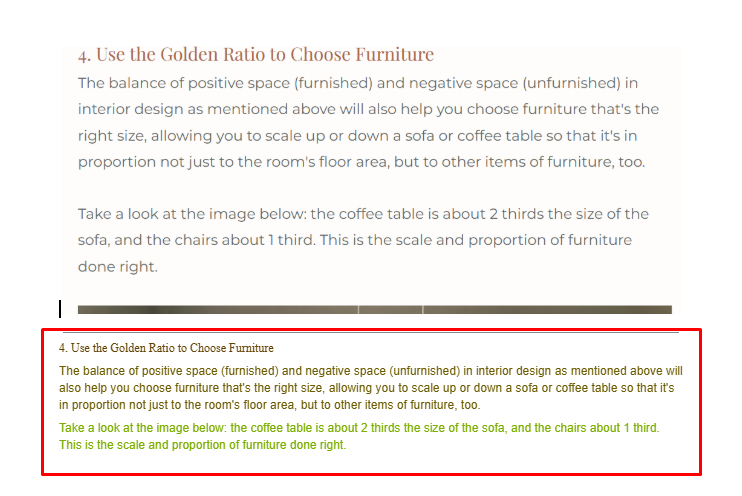
Review and edit the text as needed.
Note for this method: Formatting may not always be preserved accurately, especially with tables, columns, or complex layouts.
Wrapping Up
These are the five methods that you can follow to extract text from images. Each method has its own usage and benefits.
Here is a recap of where each method is suitable:
Manual extraction: Ideal for short text and sensitive documents where accuracy and privacy matter most.
Mobile apps: Suitable for scanning physical documents, receipts, notes, or signs while on the go.
Online OCR tools: Useful for occasional conversions when you do not want to install software.
Windows Snipping Tool: Ideal for quick and efficient extraction using a native tool on your Windows device.
Google Docs or Google Drive: Best for free OCR with built-in editing and cloud storage in one place.
Choose the method based on the length of the text, the level of confidentiality, and how quickly you need the result.
FAQs (Frequently Asked Questions)
How can I extract text from an image for free?
You can use online OCR tools, Google Docs, or the Snipping tool. Many platforms offer free basic extraction.
Can I extract text from any kind of image?
You can extract text from most images that contain clear, printed text. This includes screenshots, scanned documents, signs, posters, and well-lit photos.
However, accuracy depends on image quality. If the text is blurry, low-resolution, tilted, low contrast, or heavily stylized, OCR results may contain errors. In such cases, you may need to manually review and correct the extracted text.
Can OCR tools handle languages other than English?
Yes. Many modern OCR tools support multiple languages and scripts. You can often select the language before processing, which improves recognition accuracy.
If the correct language is not selected, the tool may misinterpret certain characters or words, especially in languages that use non-Latin scripts.
Can I extract handwritten text from images?
Yes, our advanced handwriting OCR tool can recognize clear, neatly written handwriting, though handwritten text is generally harder to process than printed text.
Accuracy depends on writing style, spacing, and image clarity, so messy or cursive handwriting may still require some manual correction after extraction.
Can I extract text from a PDF file?
Yes. If the PDF contains scanned images of text, you can use OCR tools to extract the content. Many online OCR platforms and apps allow you to upload PDF files directly.
If the PDF already contains selectable text, you can simply copy and paste it without using OCR.