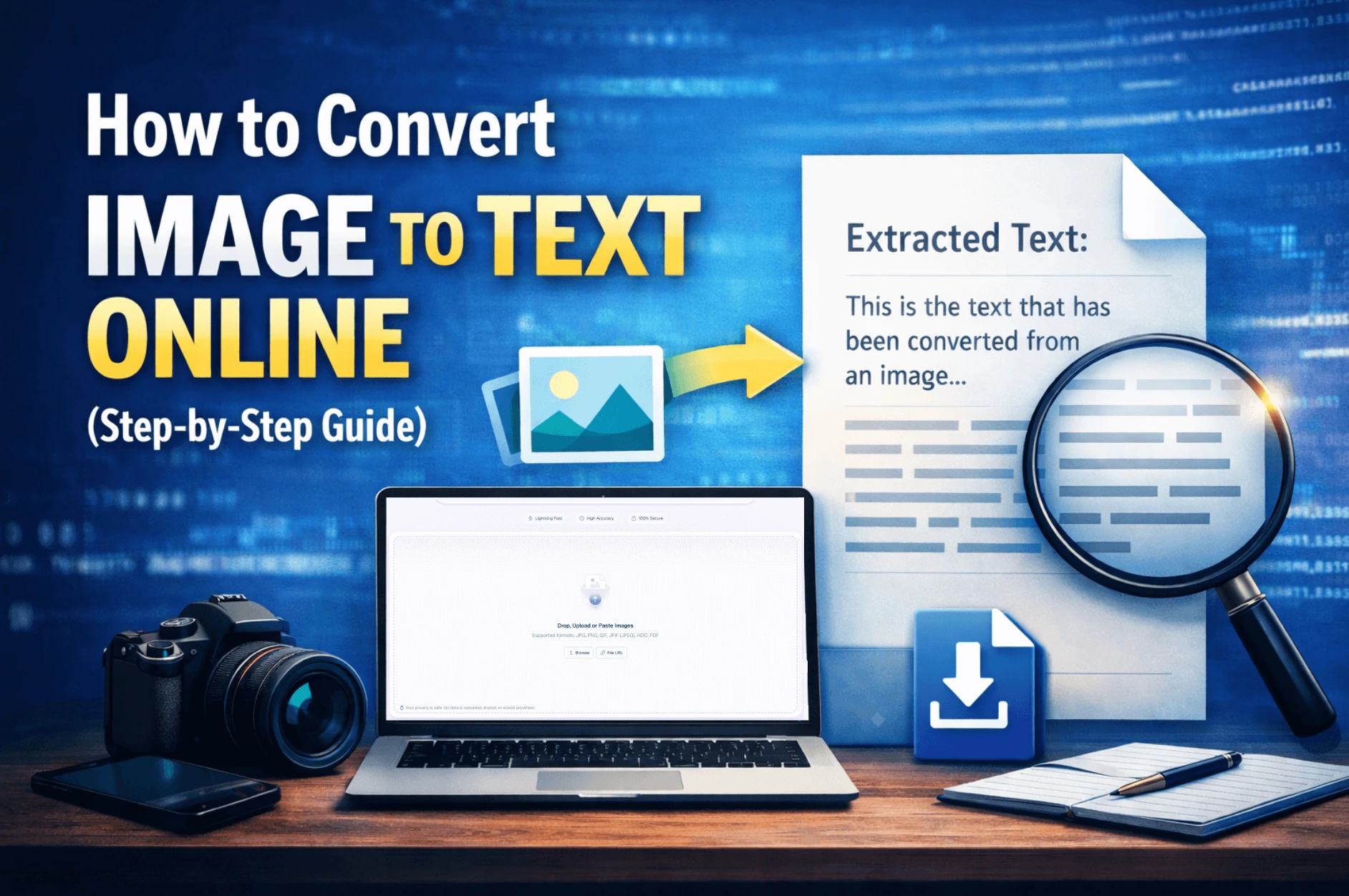
Quick Answer: You can convert an image to text online using Imagetotextocr.com, a free image-to-text OCR tool. Open the tool, upload your image using the file upload, copy-paste, or drag-and-drop, then crop and adjust it. Start the image-to-text conversion process, and save and download the extracted text once processing completes.
Introduction
You can easily convert an image to text using several different methods. For faster and more accurate results, most users prefer an OCR-based image to text converter that works directly in the browser.
In this guide, we’ll show you exactly how to convert images to text step-by-step using a free OCR tool as a reference. Once you are done reading this guide, you will be able to convert your screenshots, document images, PDFs, and other types of image files to text with ease.
How to Convert Image to Text Online (5 Easy Steps)
Here is a breakdown of the steps that you need to follow:
- Open Imagetotextocr.com
- Upload your image via file upload, copy-paste, or drag-and-drop
- Crop and adjust your image
- Start the image-to-text conversion process
- Save and download the extracted text
Here is an explanation of each step in more detail, with attached screenshots.
1. Open Imagetotextocr.com
First of all, open your web browser and type Imagetotextocr.com in the address bar.
Since you are currently reading this guide, you have already found the right place to start. Simply scroll up and click on the icon in the header to navigate to the home page.
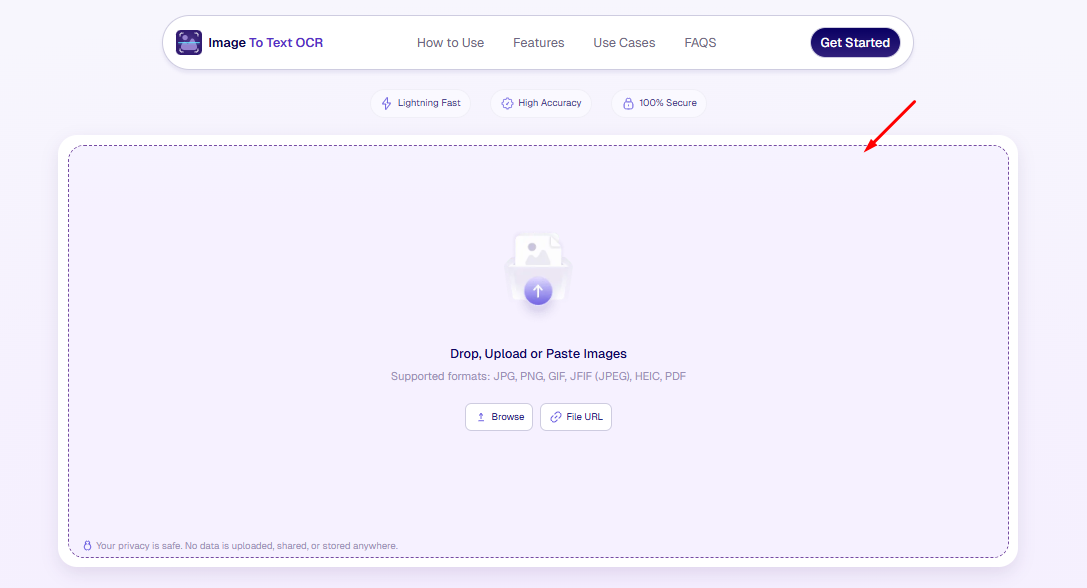
Once you are on the home page, you will be able to see the tool, as shown in the image below:
2. Upload your image via file upload, copy-paste or drag-and-drop
Once you are on the homepage, simply upload or import your images to begin the extraction process.
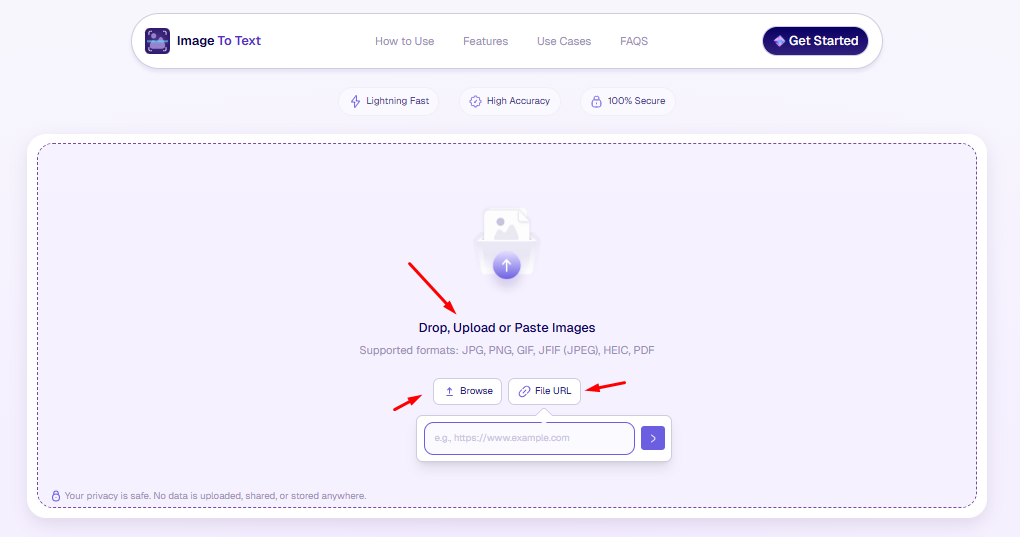
To upload your image(s) to the tool, there are a number of different methods that you can follow, including:
- Drag-and-drop: You can drag and drop an image file from anywhere on your computer to the input box, and it will be fetched automatically.
- Copy-paste: You can also copy (CTRL + C, Command ⌘ + C) and paste (CTRL + V, Command ⌘ + V) to bring it into the tool. Once you’ve copied the image, come to the tool page, click anywhere on the screen, and then press the paste shortcut.
- Upload File (Browse): You can also make things simple and straightforward by directly uploading a file from your Gallery. Click on the Browse button to open the file selection window.
- File URL: Last but not least, if the image you wish to convert to text is somewhere on the internet, you can copy the file URL and paste it into the tool. The tool will automatically fetch it from the internet. You have to click on the File URL button to open the field.
3. Crop and adjust your image
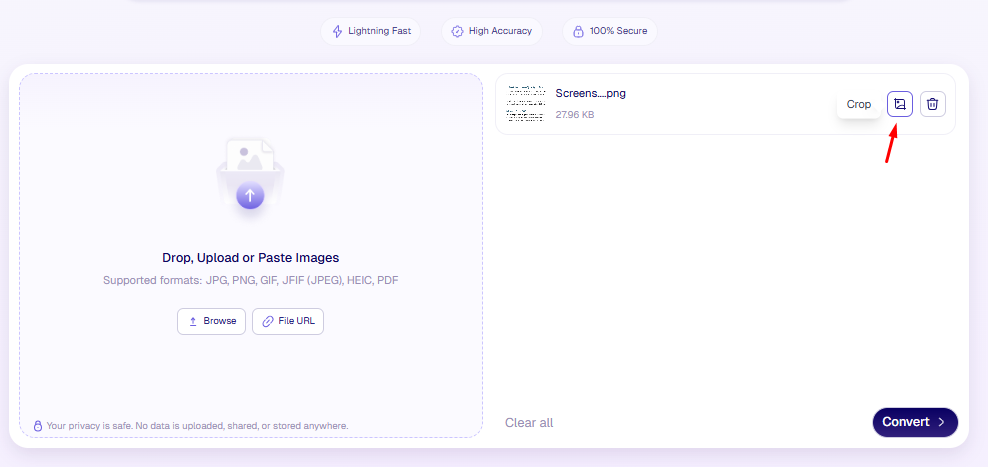
After you have uploaded and submitted your image(s), you can crop and adjust them before starting the extraction process. This is a useful and recommended step if the image you’re converting has any unnecessary visuals and graphics in it other than the text. You can crop those extra parts out to make sure the tool only has to deal with text.
To crop the image, simply click on the icon in front of it, as indicated in the screenshot below:
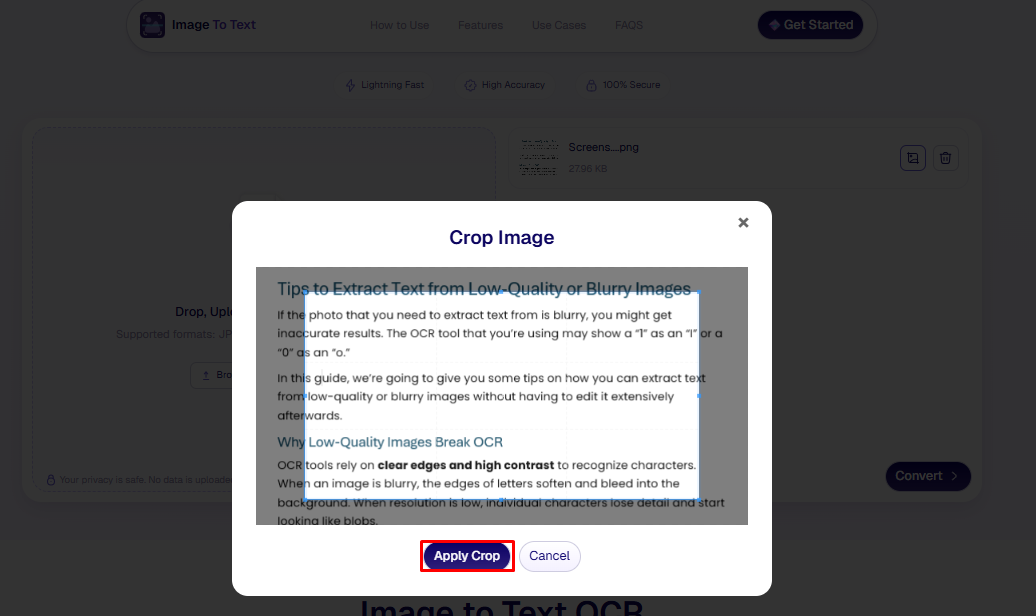
After the menu pops up, you can adjust the size of the crop box and then click on the “Apply Crop” button.
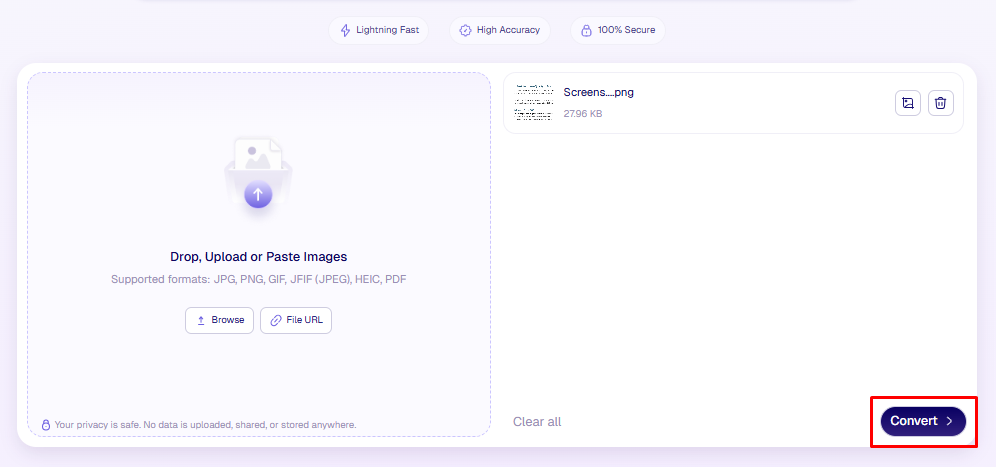
4. Start the image to text conversion process
Start the conversion process by clicking on the “Convert” button as indicated in the screenshot below:
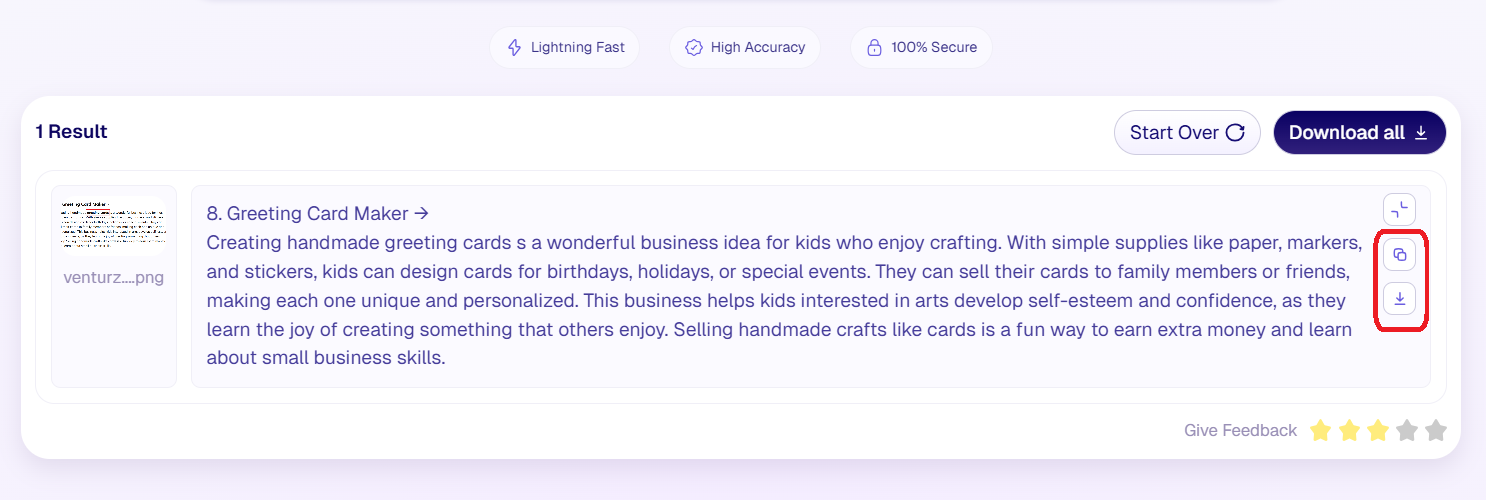
5. Save and download the extracted text
Once you start the process, it will take a few seconds, and the extracted text will be provided. You can then copy it to your clipboard or download it.
Tips to Get the Most Out of the Tool
While the process for getting text out of your images is fairly straightforward, here are a few tips that you can keep in mind to make sure the results are accurate.
- Use clear images: Blurry, pixelated, or low-resolution images reduce accuracy. Always upload sharp images with readable text.
- Crop before converting: Remove logos, graphics, and unnecessary background elements so the tool focuses only on text.
- Align the text properly: Straight, correctly oriented images produce better results than tilted or rotated ones.
- Review the output: Always proofread the extracted text, especially for symbols, numbers, and formatting.
Some Other Methods for Image to Text Conversion
While using Imagetotextocr.com is sufficient and more than enough for text extraction purposes, if you prefer alternatives, there are several other ways to convert images into text. We have actually tested and ranked the best image to text converters so you can find the perfect one for your specific workflow.
- Desktop OCR software: Tools like Adobe Acrobat, ABBYY FineReader, and Microsoft OneNote allow image and PDF text extraction with advanced editing options.
- Mobile OCR apps: Smartphone apps can scan photos and instantly extract text, useful for quick conversions on the go.
- Built-in OS features: Operating systems like Windows and macOS offer native text extraction features through screenshots and preview tools.
Compared to desktop and mobile OCR apps, Imagetotextocr.com requires no installation, works instantly in the browser, and is completely free to use.
Wrapping Up
The process of using the tool and converting images to text is fairly simple and straightforward. We’ve detailed the five steps in the post above, along with clear illustrations and images. We’ve also provided some pointers to help you get the most out of the tool.
If you want a fast, free, and accurate way to extract text from images, try Imagetotextocr.com now. Upload your image and convert it to editable text in seconds — no signup required.